Goal
You will create a product feed page in Google Shopping format to use it with Shoparize | partner by following this tutorial.
Contents
- Create product feed page template
- Add product feed page
- How can I add EAN/GTIN numbers to my product feed?
Instructions
Create product feed page template
Login to your Shopify account and go to your shop.
Sales Channels > Online Store > Themes
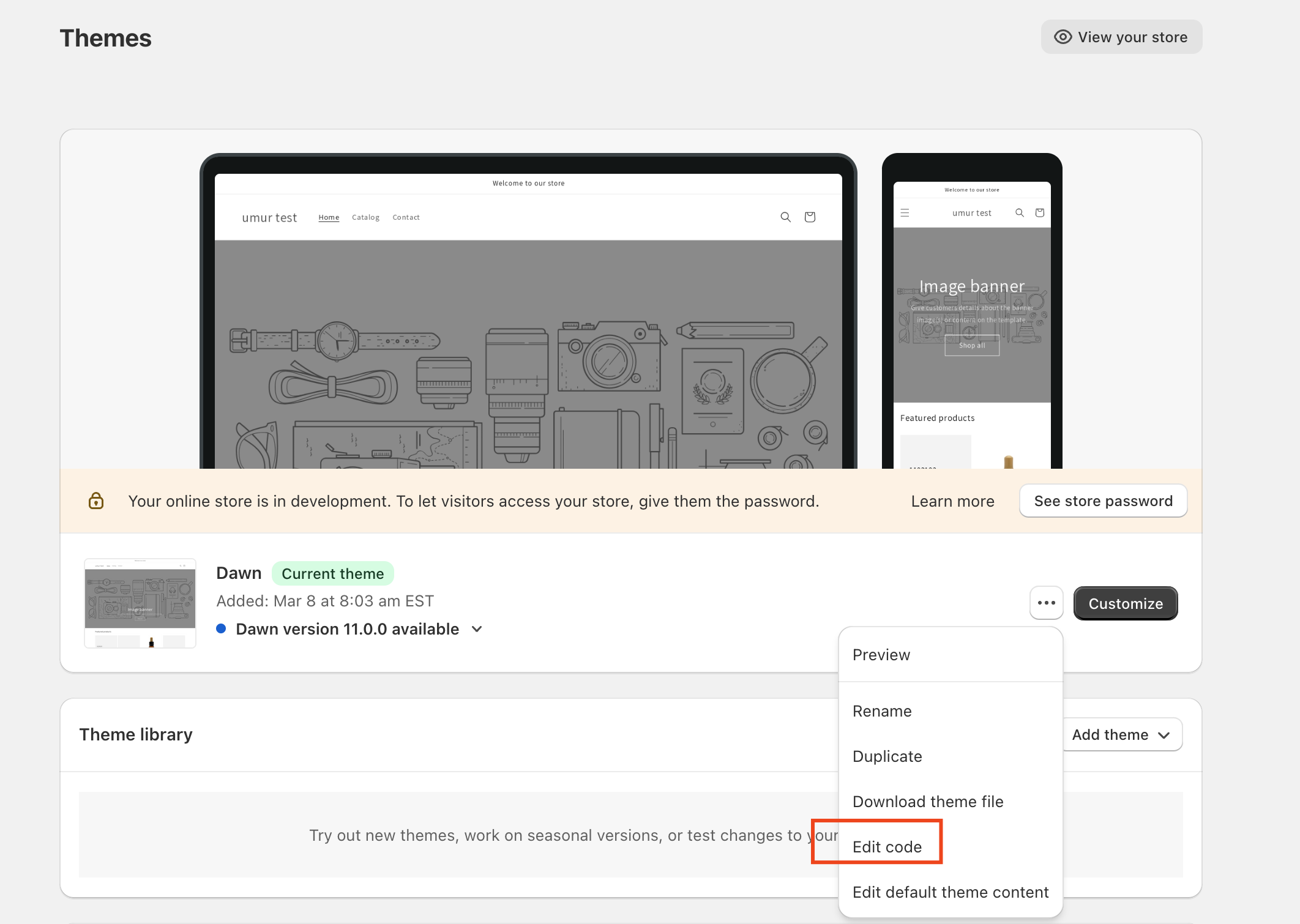
Click to Actions button on your live Theme and select Edit code
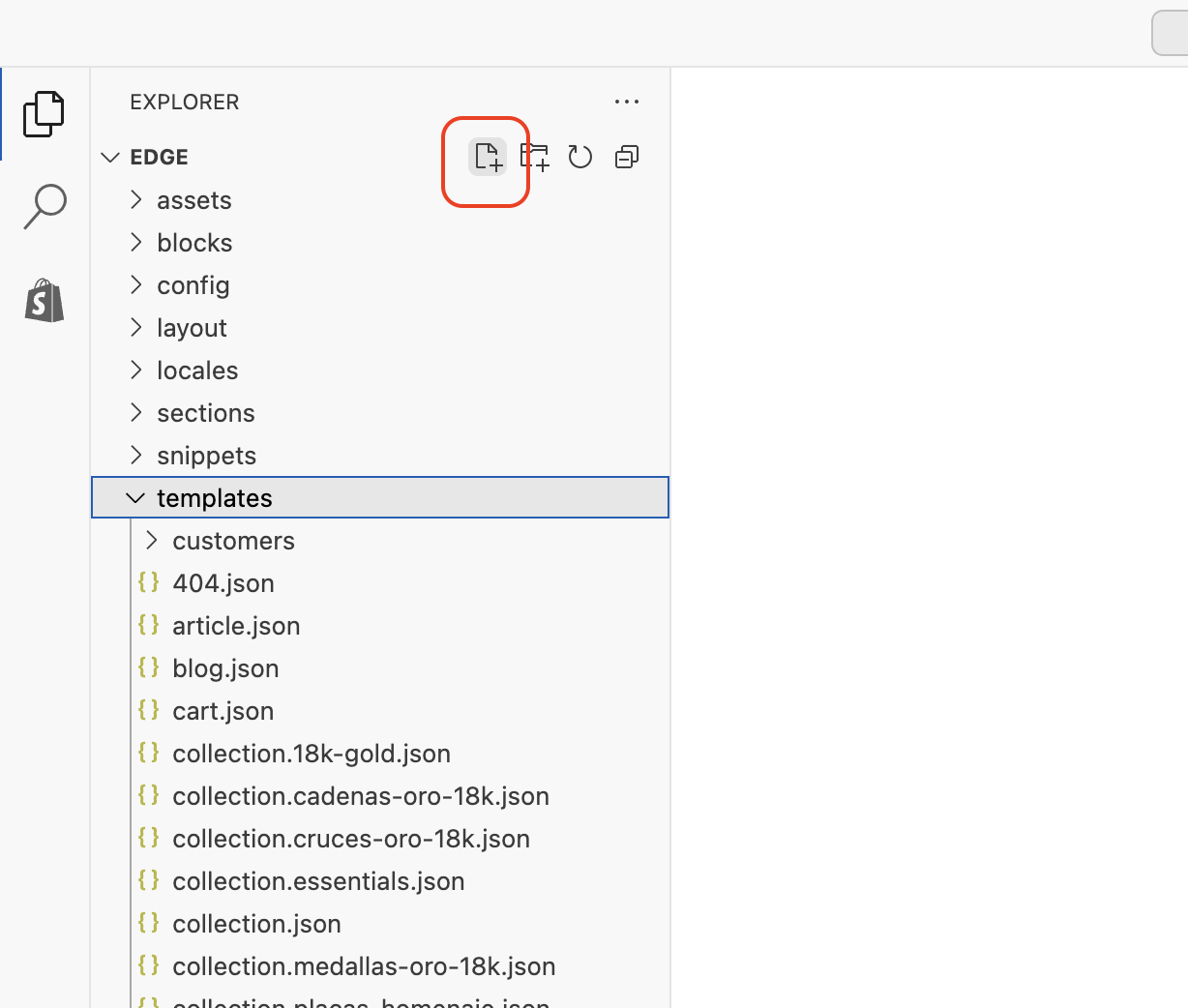
Click to Add a new file under Templates section
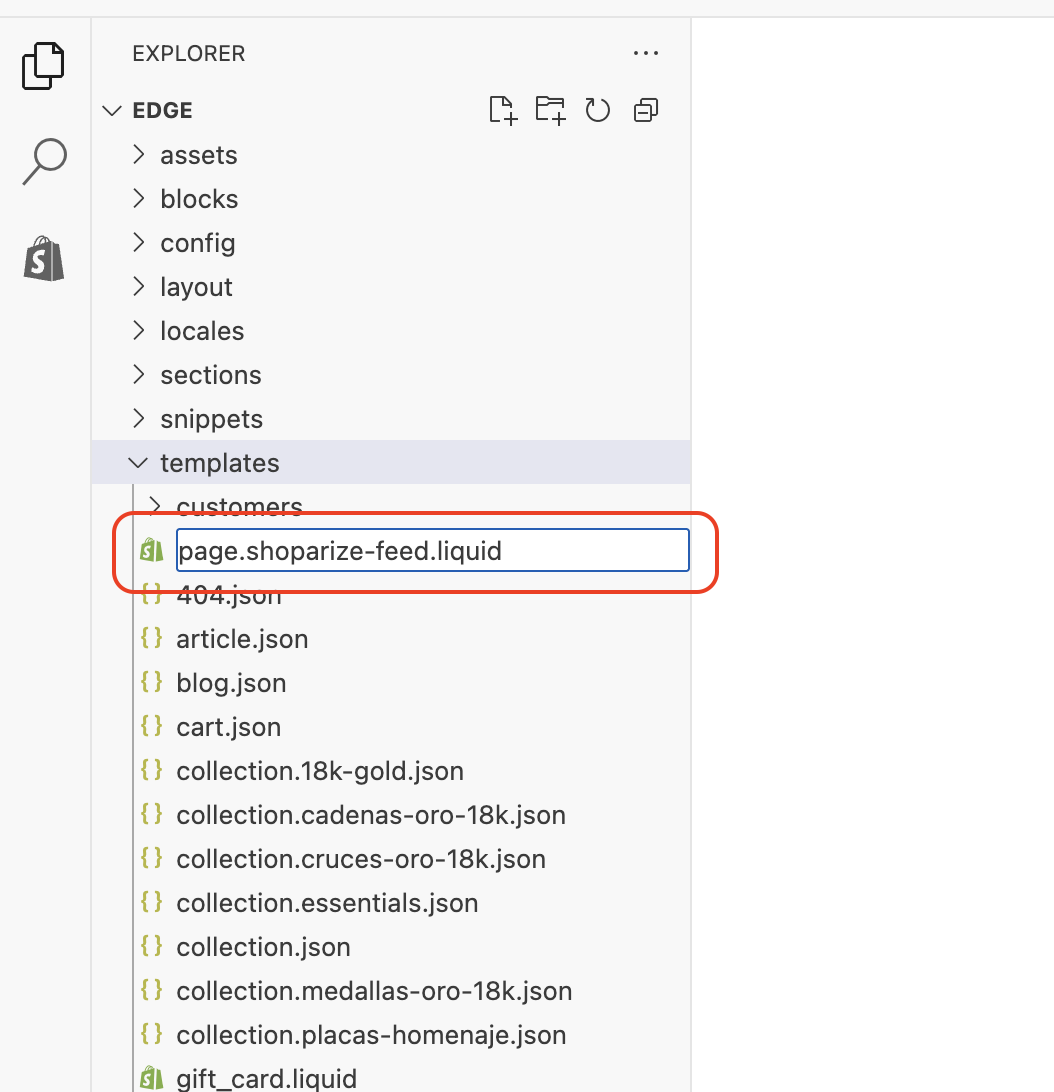
Type file name to page.shoparize-feed.liquid
After clicking to Create template button, Shopify will redirect you to edit this new page template.
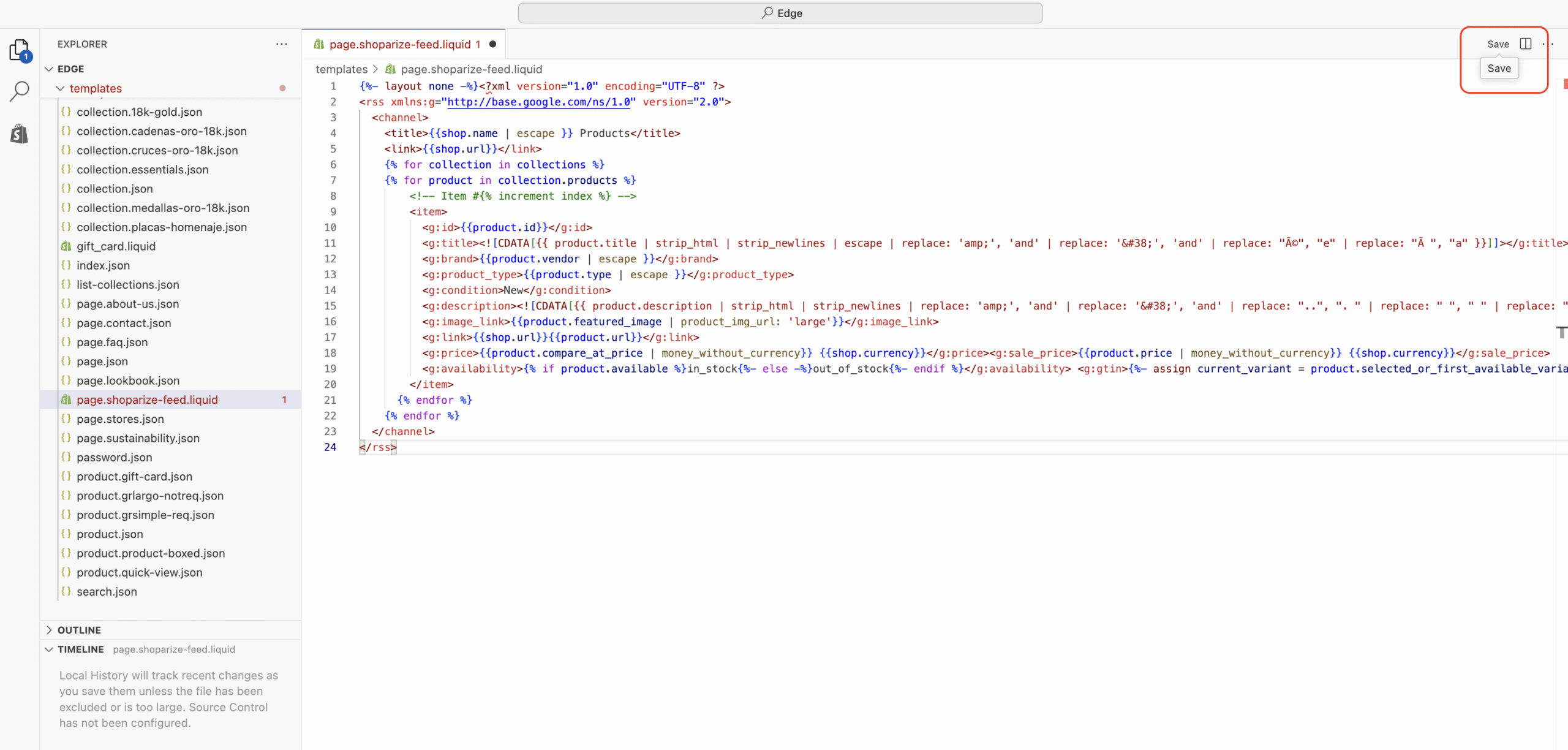
Remove everything in the text box and copy & paste below product feed template.
{%- layout none -%}<?xml version="1.0" encoding="UTF-8" ?>
<rss xmlns:g="http://base.google.com/ns/1.0" version="2.0">
<channel>
<title>{{shop.name | escape }} Products</title>
<link>{{shop.url}}</link>
{% for collection in collections %}
{% for product in collection.products %}
<!-- Item #{% increment index %} -->
<item>
<g:id>{{product.id}}</g:id>
<g:title><![CDATA[{{ product.title | strip_html | strip_newlines | escape | replace: 'amp;', 'and' | replace: '&', 'and' | replace: "é", "e" | replace: "à ", "a" }}]]></g:title>
<g:brand>{{product.vendor | escape }}</g:brand>
<g:product_type>{{product.type | escape }}</g:product_type>
<g:condition>New</g:condition>
<g:description><![CDATA[{{ product.description | strip_html | strip_newlines | replace: 'amp;', 'and' | replace: '&', 'and' | replace: "..", ". " | replace: " ", " " | replace: "‘", "'" | replace: "’", "'" | replace: "‘", "'" | replace: "’", "'" | replace: "’", "'" | replace: "’", "'" | replace: "“", "'" | replace: "‘", "'" | replace: "´", "'" | replace: "“", """ | replace: "â€", """ | replace: "–", "-" | replace: "–", "-" | replace: "â€â€", "-" | replace: "–", "—" | replace: "—", "—" | replace: "%", "%" | replace: "©", "©" | replace: "®", "®" | replace: "â„¢", "™" | replace: "£", "£" | replace: "ï¿Â", "*" | replace: "•", "*" | replace: "â€Â", "'" | replace: "é", "e" | replace: "é", "e" | replace: "à ", "a" | replace: "ó", "o" | replace: "ê", "e" | replace: "Ø", "O" | replace: "™", "" | replace: "®", "" }}]]></g:description>
<g:image_link>{{product.featured_image | product_img_url: 'large'}}</g:image_link>
<g:link>{{shop.url}}{{product.url}}</g:link>
<g:price>{{product.compare_at_price | money_without_currency}} {{shop.currency}}</g:price><g:sale_price>{{product.price | money_without_currency}} {{shop.currency}}</g:sale_price>
<g:availability>{% if product.available %}in_stock{%- else -%}out_of_stock{%- endif %}</g:availability> <g:gtin>{%- assign current_variant = product.selected_or_first_available_variant -%}{% if current_variant.barcode %}{{current_variant.barcode}}{%- else -%}{%- endif %}</g:gtin>
</item>
{% endfor %}
{% endfor %}
</channel>
</rss>
Save the template
Add product feed page
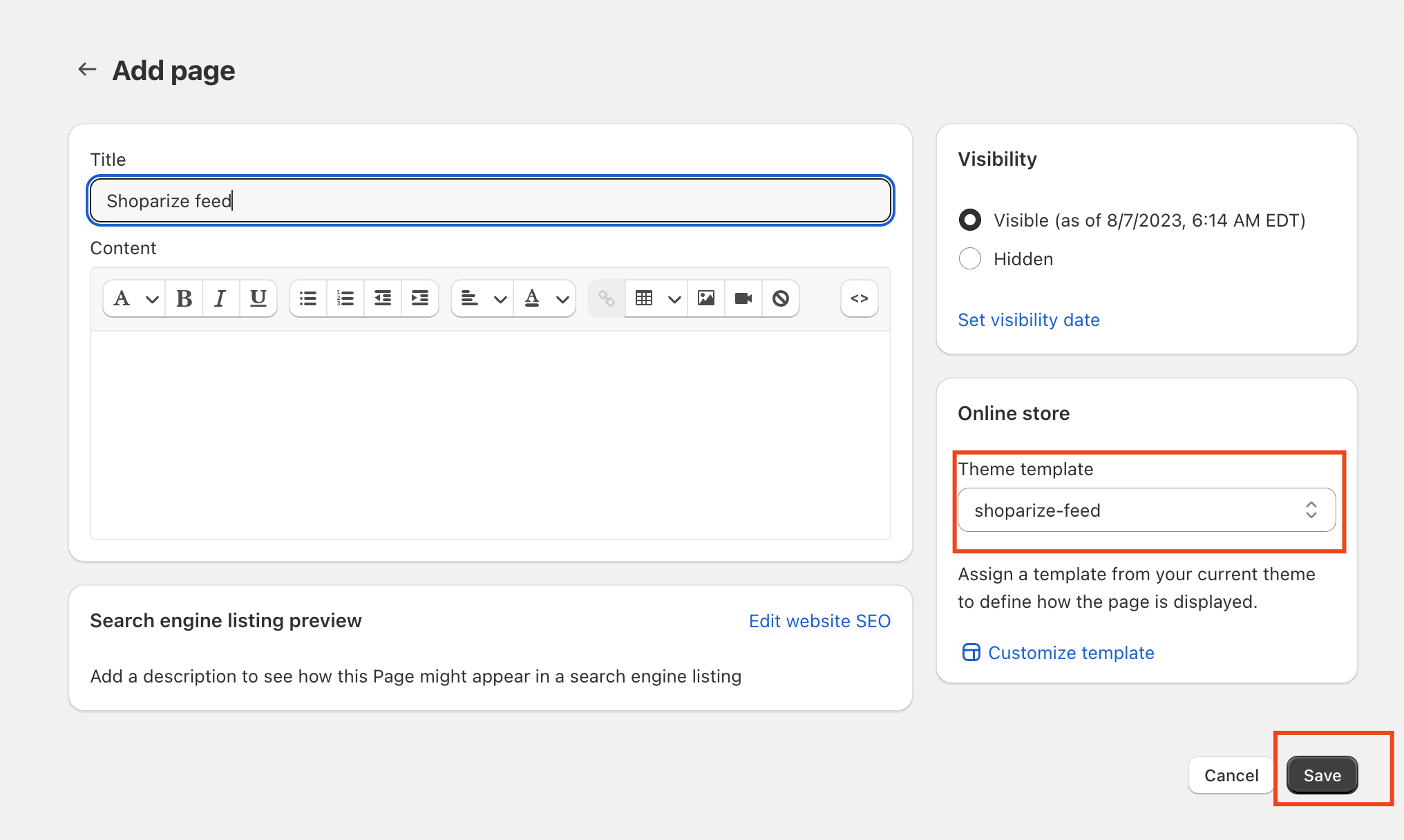
Go to Sales Channels > Online Store > Pages and add a new page.

Put Shoparize Product Feed to Title
Select shoparize-feed as Theme template
Save page.
Your product feed is ready.
Click to Preview page to see your new product feed page. Or you can visit https://yourshoppage.com/pages/shoparize-product-feed
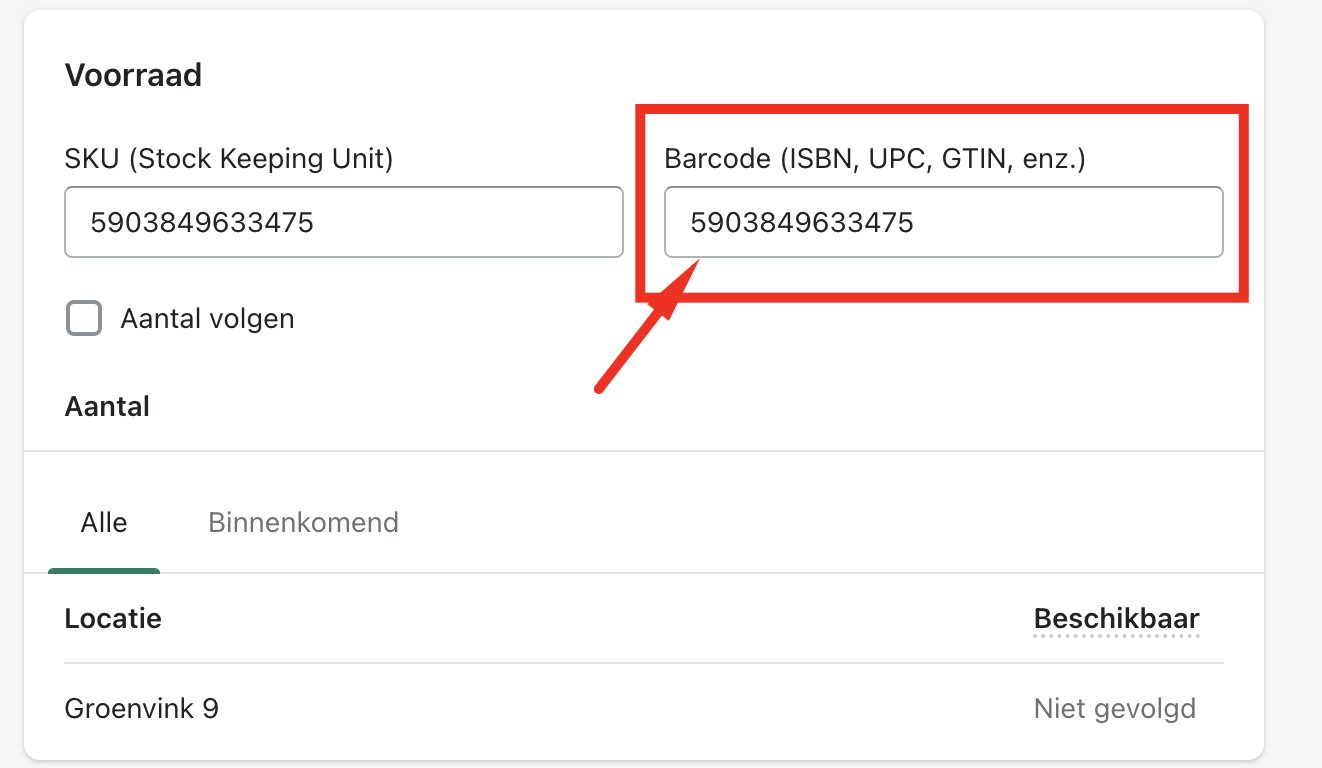
How can I add EAN/GTIN numbers to my feed?
You need to add barcode numbers to product detail page’s Stock – Barcode section.