Skip to content

Miten voin luoda ilmaisen Product Feed -sivun Shopifyssa?

Shoparize E-commerce growth team
Download PDF Read below

Tavoite

Luot tuotesyötesivun Google Shopping -muodossa käyttääksesi sitä yhdessä Shoparize | partner -palvelun kanssa seuraamalla tätä ohjetta.

Sisällys

  • Luo tuotesyötteen sivupohja
  • Lisää tuoteluettelon sivu
  • Miten voin lisätä EAN/GTIN-numerot tuoteluettelooni?

Ohjeet

Luo tuoteluettelon sivupohja

Kirjaudu Shopify-tilillesi ja siirry kauppaasi.

Myyntikanavat > Verkkokauppa > Teemat

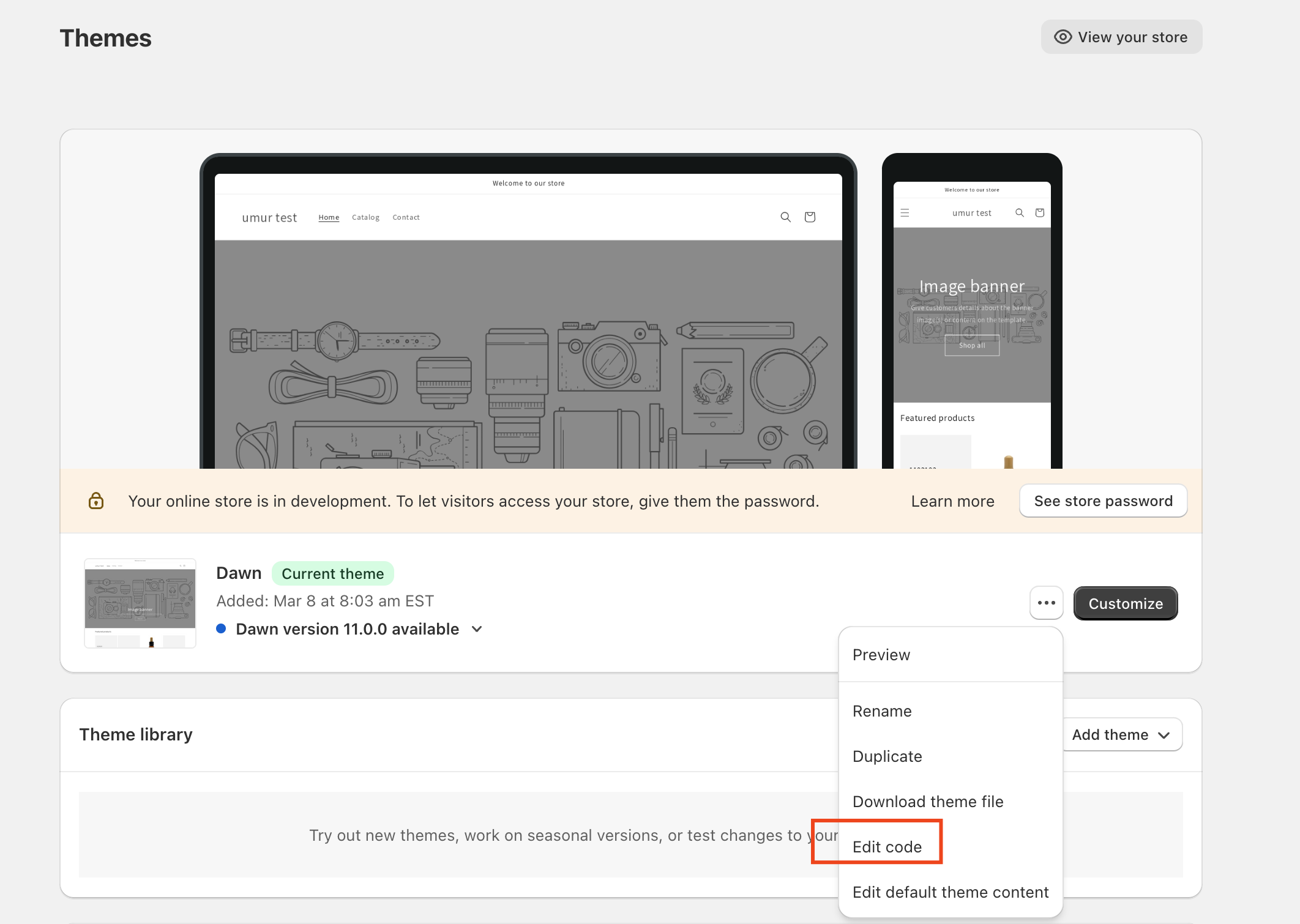
Napsauta Toiminnot painiketta aktiivisessa teemassasi ja valitse Muokkaa koodia
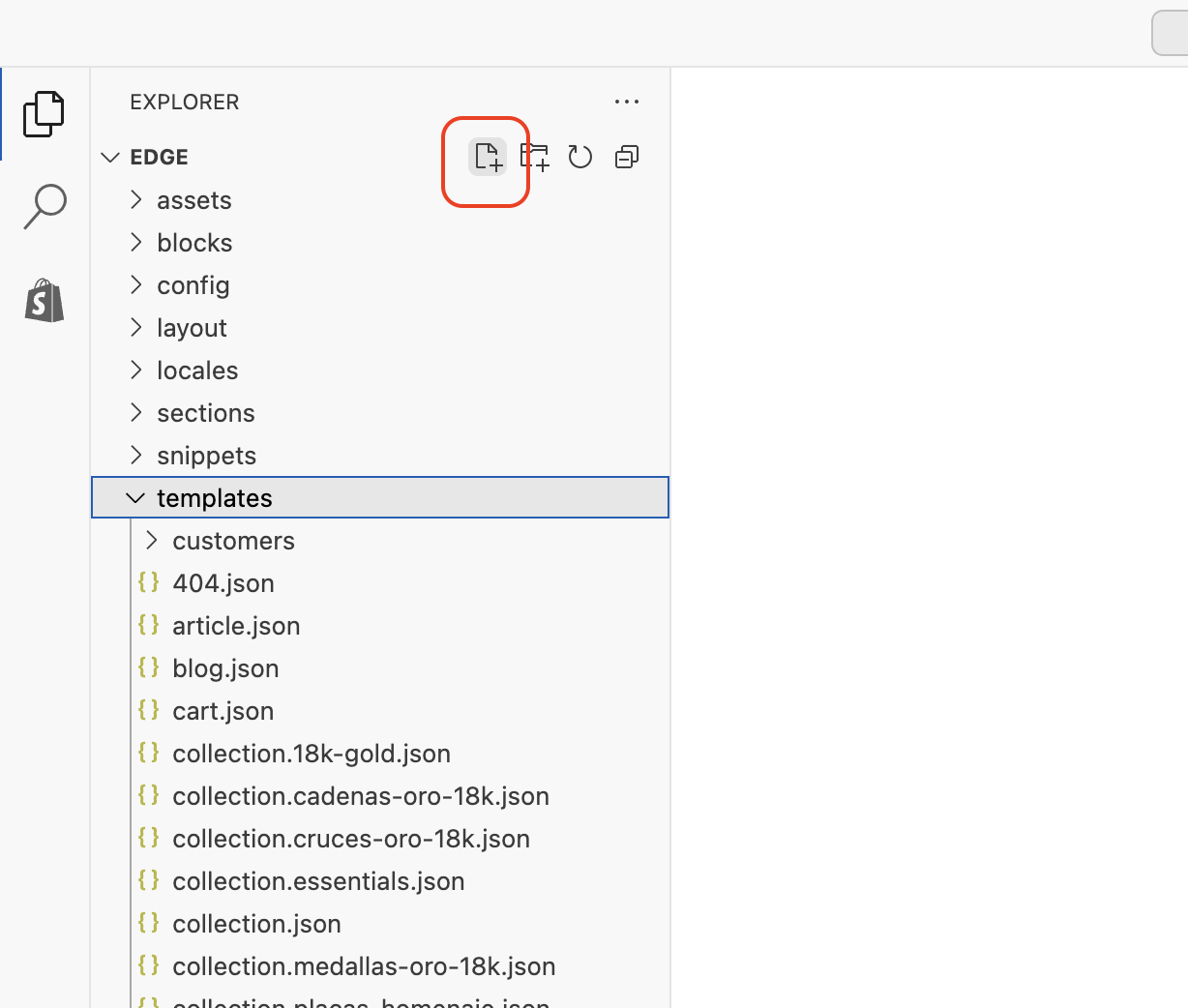
Napsauta, lisää uusi tiedosto Mallit-osioon
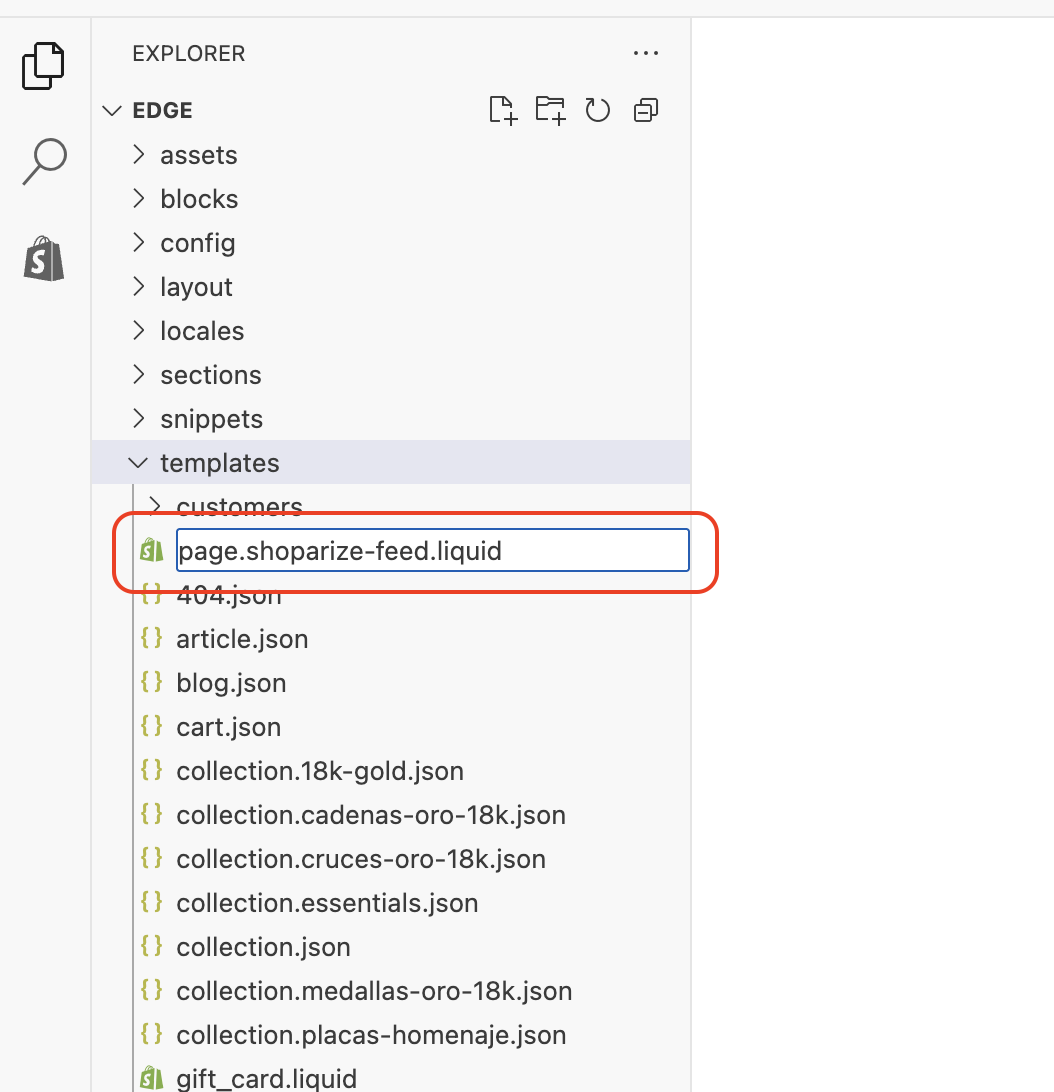
Kirjoita tiedoston nimi page.shoparize-feed.liquid
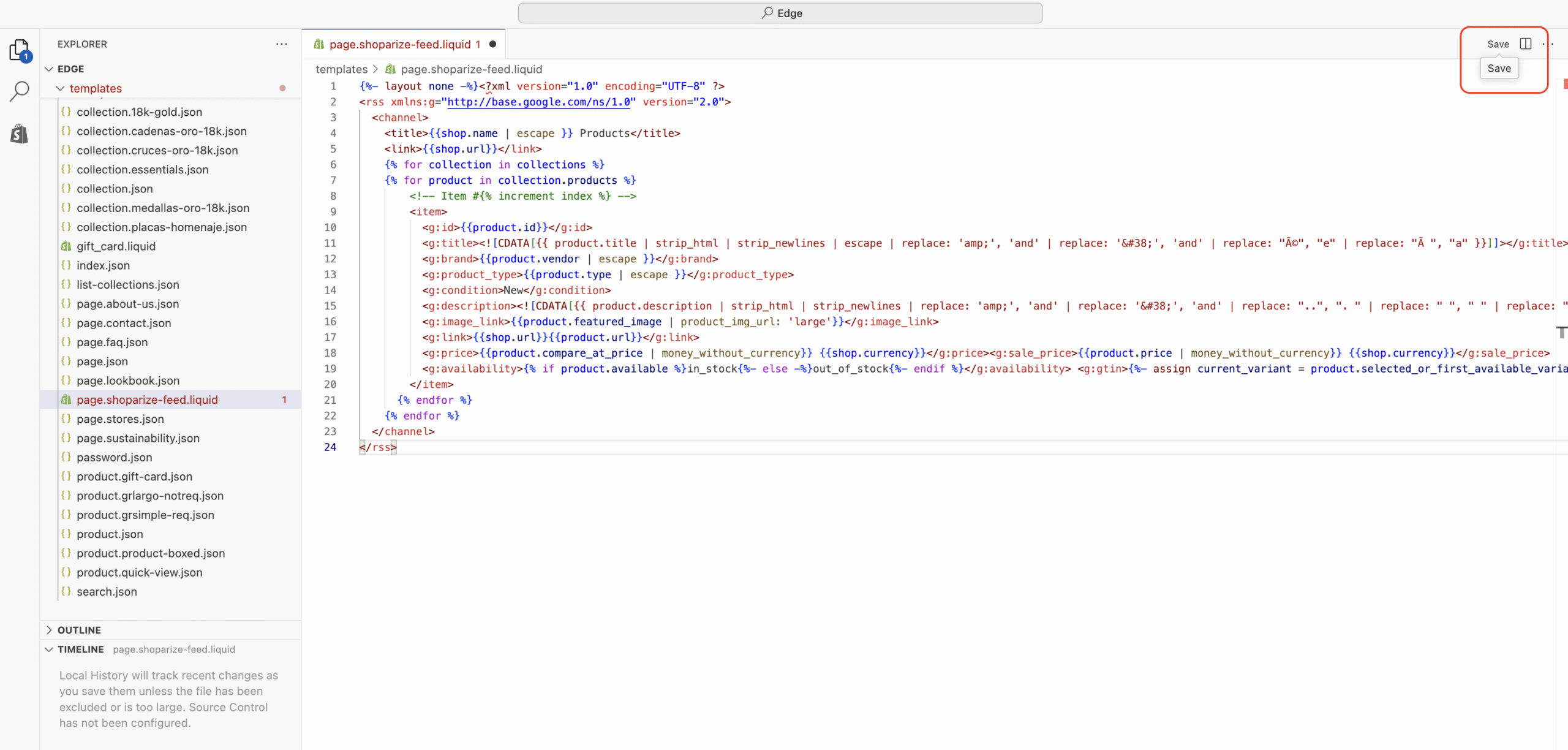
Kun napsautat Luo mallipohja -painiketta, Shopify ohjaa sinut muokkaamaan tätä uutta sivumallia.

Poista kaikki tekstikentästä ja kopioi sekä liitä alle tuoteluettelon malli.

html

                                {%- layout none -%}
                              
                                <
                              ?xml version
                                =
                              
                                "1.0"
                               encoding
                                =
                              
                                "UTF-8"
                               ?
                                >
                              

                                <rss xmlns:g="http://base.google.com/ns/1.0" version="2.0">
                              
  
                                <channel>
                              
    
                                <title>
                              
                                {{shop.name | escape }}
                               Products
                                </title>
                              
    
                                <link>
                              
                                {{shop.url}}
                              
                                </link>
                              
    
                                {% for collection in collections %}
                              
    
                                {% for product in collection.products %}
                              
        
                                <!-- Item #{% increment index %} -->
                              
        
                                <item>
                              
          
                                <g:id>
                              
                                {{product.id}}
                              
                                </g:id>
                              
          
                                <g:title>
                              
                                <![CDATA[{{ product.title | strip_html | strip_newlines | escape | replace: 'amp;', 'and' | replace: '&#38;', 'and' | replace: "é", "e" | replace: "à ", "a" }}]]>
                              
                                </g:title>
                              
          
                                <g:brand>
                              
                                {{product.vendor | escape }}
                              
                                </g:brand>
                              
          
                                <g:product_type>
                              
                                {{product.type | escape }}
                              
                                </g:product_type>
                               
          
                                <g:condition>
                              New
                                </g:condition>
                              
          
                                <g:description>
                              
                                <![CDATA[{{ product.description | strip_html | strip_newlines | replace: 'amp;', 'and' | replace: '&#38;', 'and' | replace: "..", ". " | replace: " ", " " | replace: "‘", "&#39;" | replace: "’", "&#39;" | replace: "&#8216;", "&#39;" | replace: "&#8217;", "&#39;" | replace: "&#8217;", "&#39;" | replace: "’", "&#39;" | replace: "“", "&#39;" | replace: "‘", "&#39;" | replace: "´", "&#39;" | replace: "“", "&#34;" | replace: "â€", "&#34;" | replace: "&#8211;", "-" | replace: "–", "-" | replace: "â€â€", "-" | replace: "–", "&mdash;" | replace: "—", "&mdash;" | replace: "%", "&#37;" | replace: "©", "&copy;" | replace: "®", "&reg;" | replace: "â„¢", "&trade;" | replace: "£", "&pound;" | replace: "ï¿­", "&#42;" | replace: "•", "&#42;" | replace: "â€Â", "&#39;" | replace: "&#233;", "e" | replace: "é", "e" | replace: "à ", "a" | replace: "ó", "o" | replace: "ê", "e" | replace: "Ø", "O" | replace: "&#8482;", "" | replace: "&#174;", "" }}]]>
                              
                                </g:description>
                              
          
                                <g:image_link>
                              
                                {{product.featured_image | product_img_url: 'large'}}
                              
                                </g:image_link>
                              
          
                                <g:link>
                              
                                {{shop.url}}
                              
                                {{product.url}}
                              
                                </g:link>
                              
          
                                <g:price>
                              
                                {{product.compare_at_price | money_without_currency}}
                               
                                {{shop.currency}}
                              
                                </g:price>
                              
                                <g:sale_price>
                              
                                {{product.price | money_without_currency}}
                               
                                {{shop.currency}}
                              
                                </g:sale_price>
                              
          
                                <g:availability>
                              
                                {% if product.available %}
                              in_stock
                                {%- else -%}
                              out_of_stock
                                {%- endif %}
                              
                                </g:availability>
                               
                                <g:gtin>
                              
                                {%- assign current_variant = product.selected_or_first_available_variant -%}
                              
                                {% if current_variant.barcode %}
                              
                                {{current_variant.barcode}}
                              
                                {%- else -%}
                              
                                {%- endif %}
                              
                                </g:gtin>
                              
        
                                </item>
                              
      
                                {% endfor %}
                              
    
                                {% endfor %}
                              
  
                                </channel>
                              

                                </rss>
                              

Tallenna mallipohja

Lisää tuoteluettelon sivu

Siirry kohtaan Sales Channels > Online Store > Pages ja lisää uusi sivu.

Lisää Shoparize Product Feed otsikkoon

Valitse shoparize-feed teemamalliksi

Tallenna sivu.
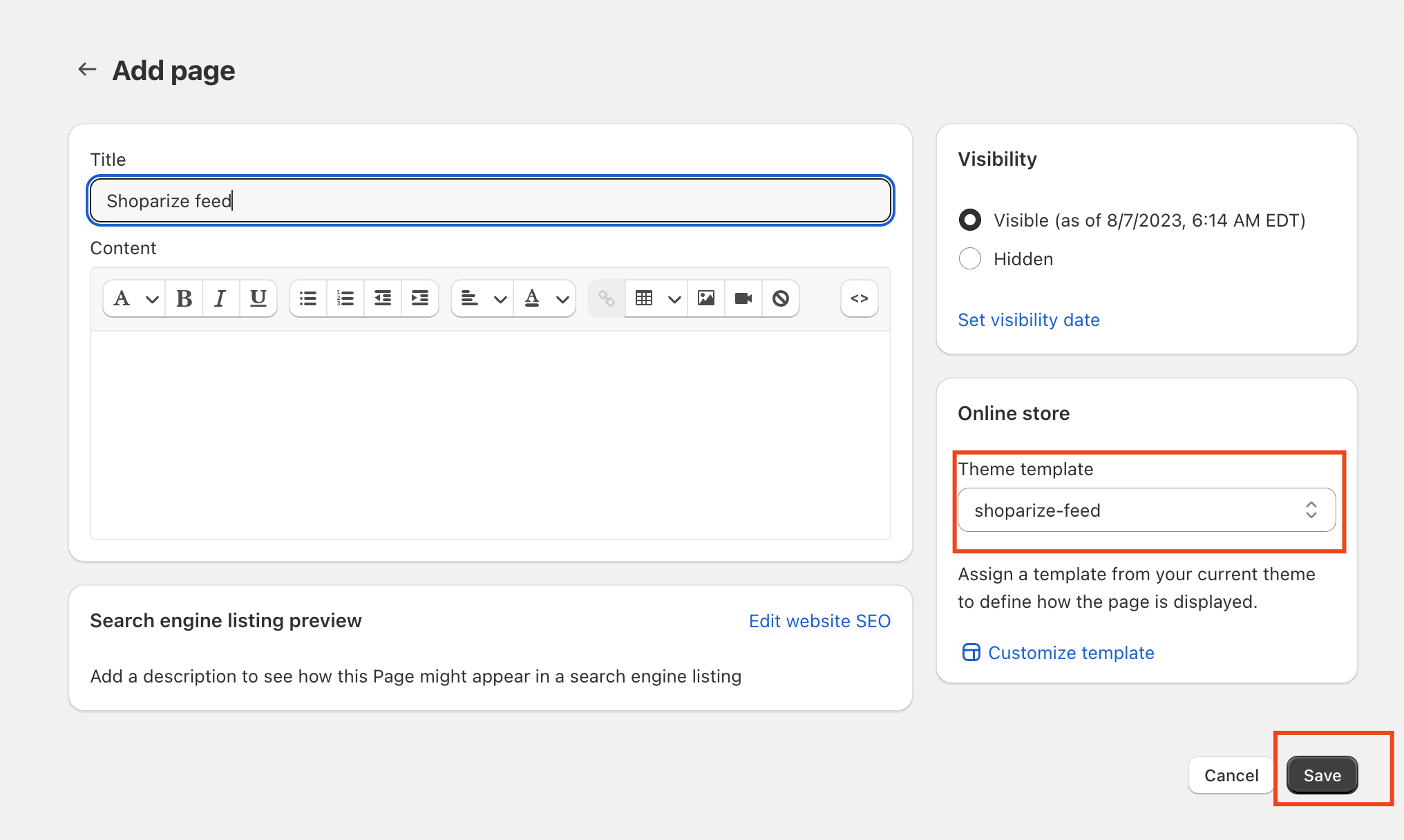
Tuotesyötteesi on valmis.

Napsauta Esikatselu-sivua nähdäksesi uuden tuotesyötteen sivun. Voit myös vierailla osoitteessa https://yourshoppage.com/pages/shoparize-product-feed

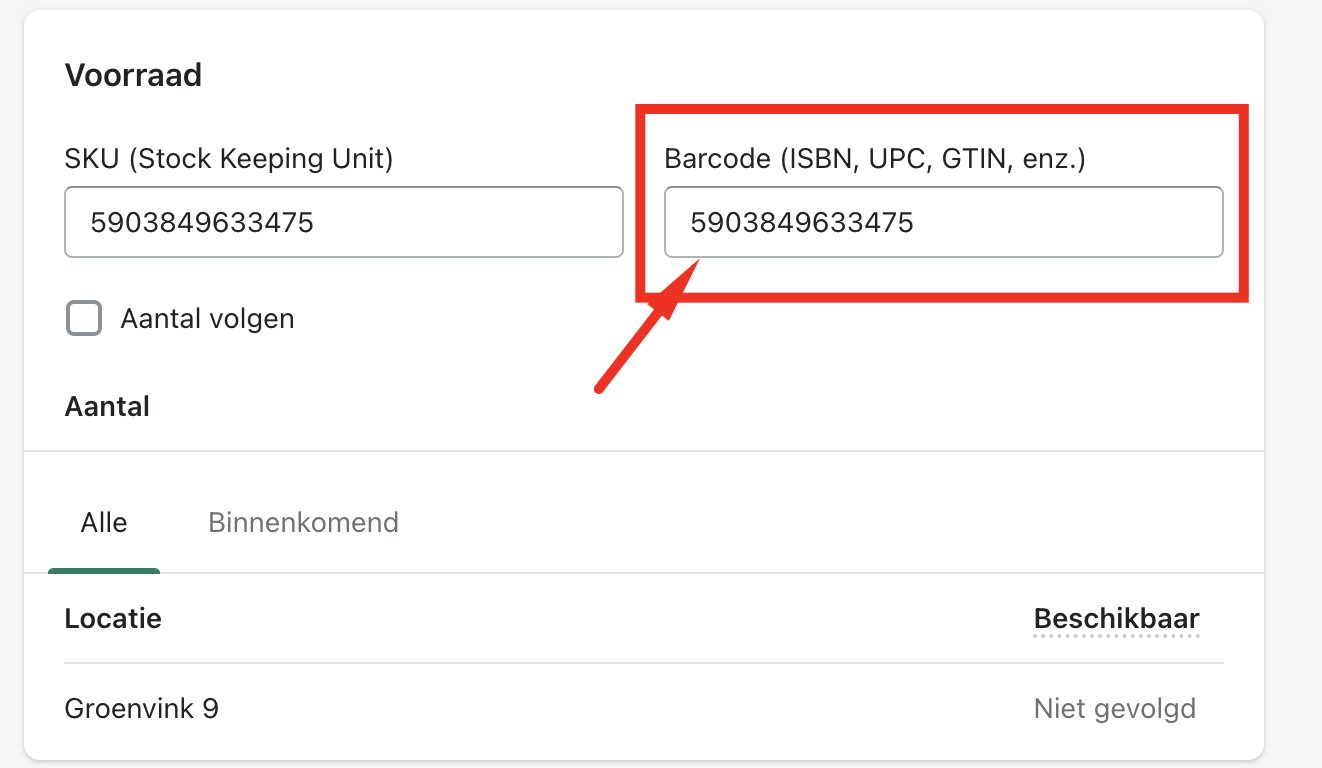
Miten voin lisätä EAN/GTIN-numerot syötteeseeni?

Sinun on lisättävä viivakoodinumerot tuotesivun Varasto – Viivakoodi -osioon.
Download the full guide

Get the PDF version and keep the checklist close while you work through setup.

Want help choosing the right Shopping setup?

Talk to our team and we will recommend the right path for your store, market, and product feed.

Talk to our team