Skip to content

Wie kann ich eine kostenlose Product Feed Page in Shopify erstellen?

Shoparize E-commerce growth team
Download PDF Read below

Ziel

Sie erstellen eine Produkt-Feed-Seite im Google-Shopping-Format, um sie mit Shoparize | partner zu verwenden, indem Sie dieses Tutorial befolgen.

Inhalt

  • Vorlagenseite für Produktfeeds erstellen
  • Produkt-Feed-Seite hinzufügen
  • Wie kann ich EAN-/GTIN-Nummern zu meinem Produktfeed hinzufügen?

Anweisungen

Vorlagenseite für Produktfeed erstellen

Melden Sie sich bei Ihrem Shopify-Konto an und gehen Sie zu Ihrem Shop.

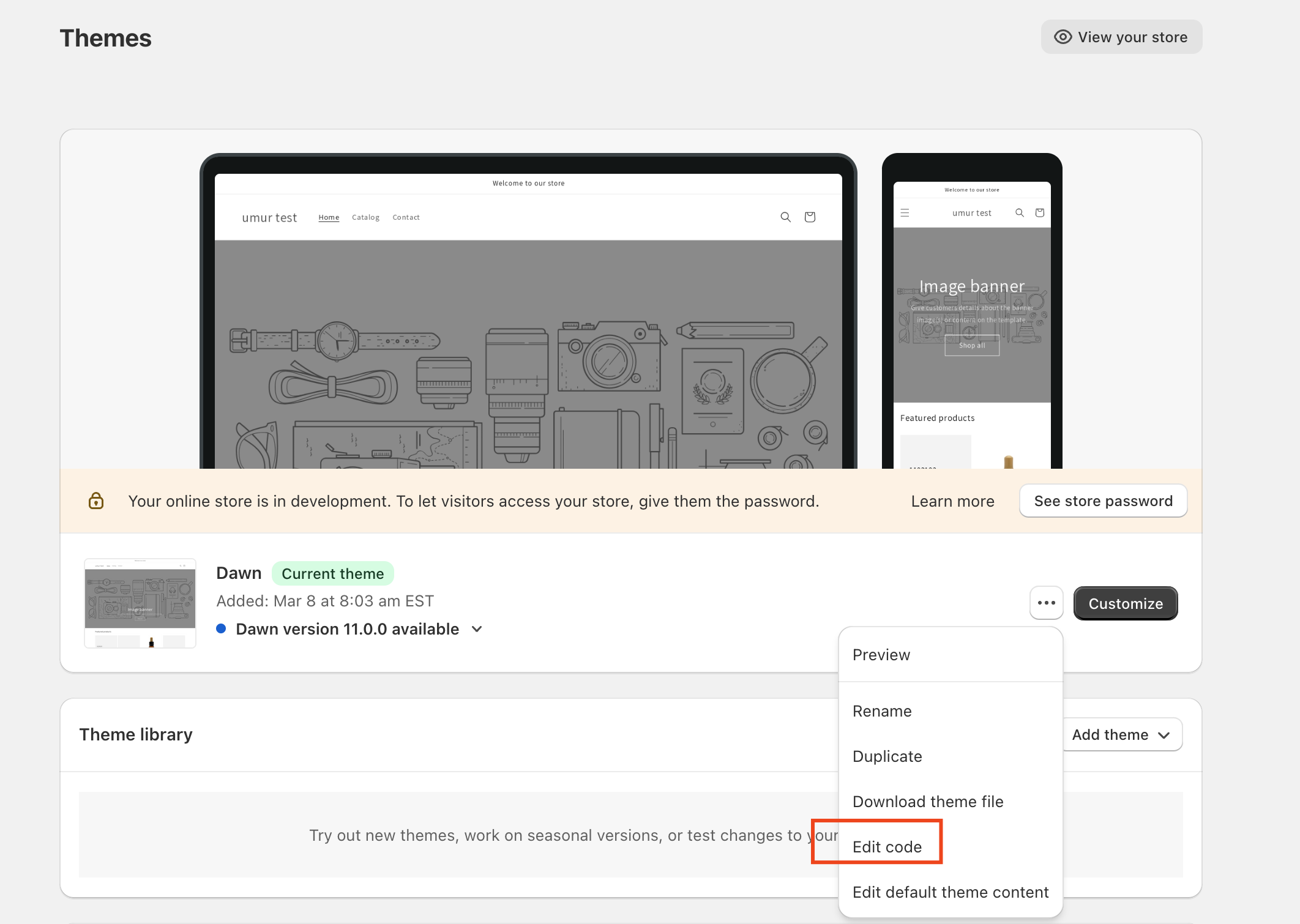
Vertriebskanäle > Onlineshop > Themes

Klicken Sie auf Aktionen in Ihrem aktiven Theme und wählen Sie Code bearbeiten
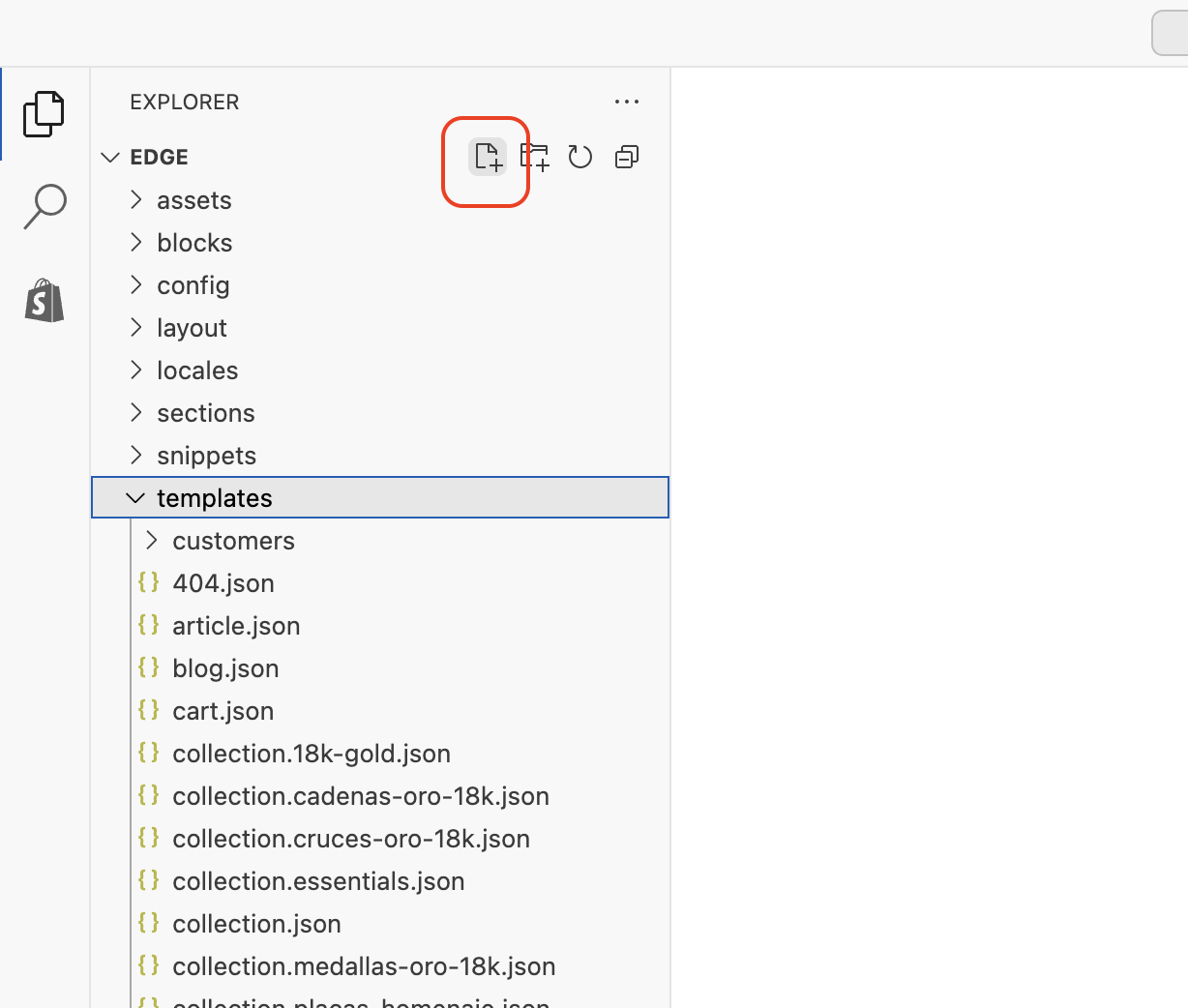
Klicken, um eine neue Datei hinzuzufügen unter dem Abschnitt Vorlagen
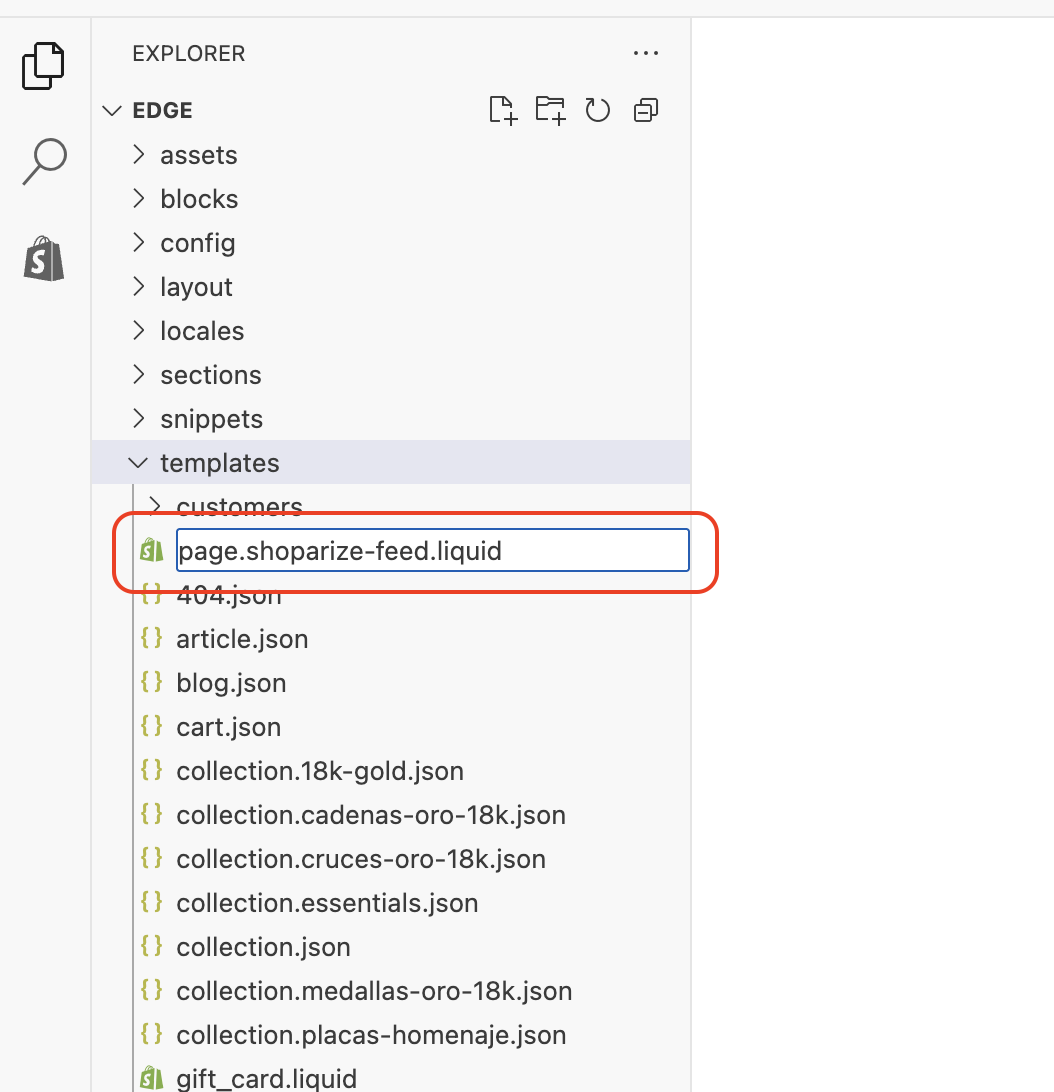
Dateiname eingeben für page.shoparize-feed.liquid
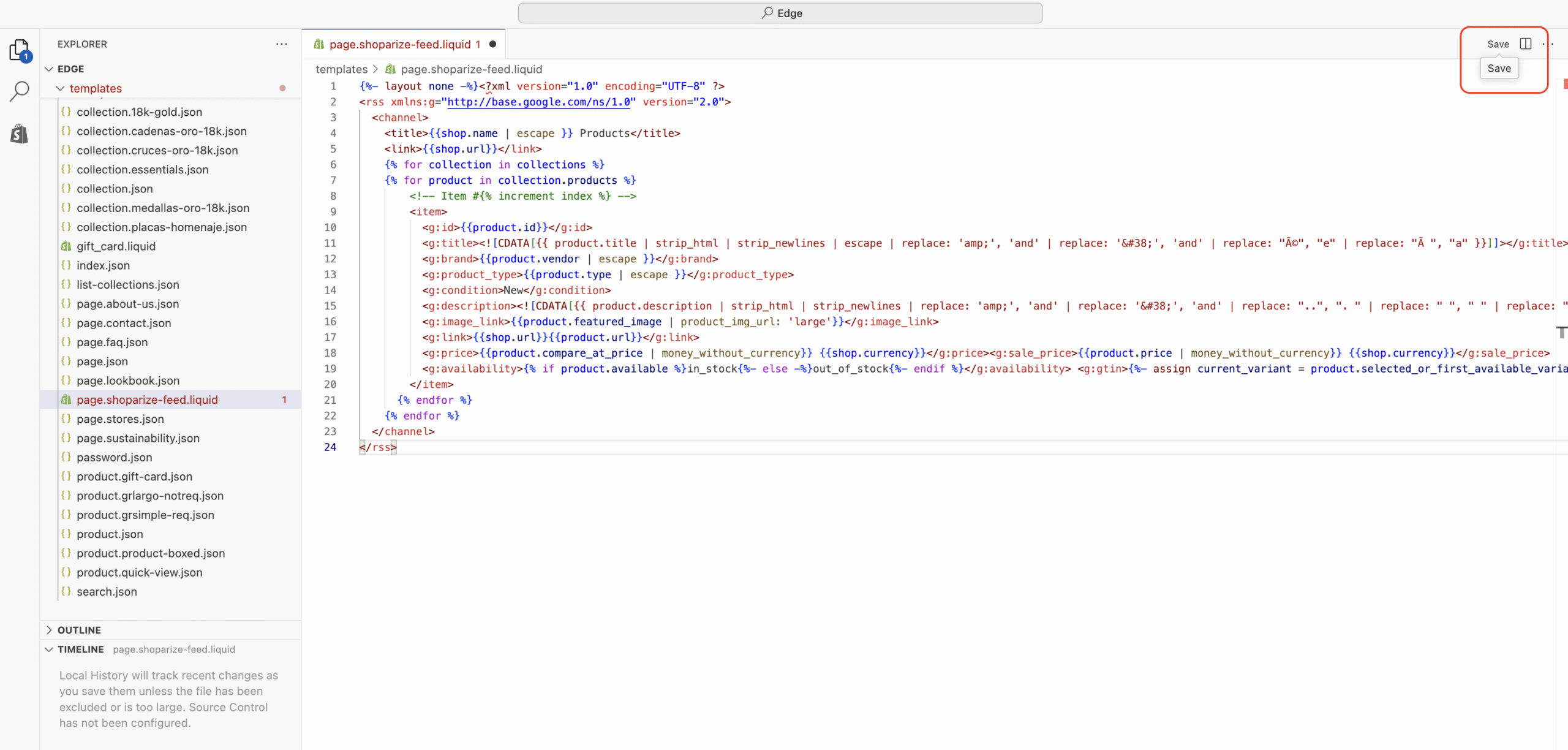
Nachdem Sie auf die Schaltfläche „Create template“ geklickt haben, leitet Shopify Sie zur Bearbeitung dieser neuen Seitenvorlage weiter.

Löschen Sie den gesamten Inhalt im Textfeld und kopieren Sie anschließend die folgende Produkt-Feed-Vorlage hinein.

html

                                {%- layout none -%}
                              
                                <
                              ?xml version
                                =
                              
                                "1.0"
                               encoding
                                =
                              
                                "UTF-8"
                               ?
                                >
                              

                                <rss xmlns:g="http://base.google.com/ns/1.0" version="2.0">
                              
  
                                <channel>
                              
    
                                <title>
                              
                                {{shop.name | escape }}
                               Products
                                </title>
                              
    
                                <link>
                              
                                {{shop.url}}
                              
                                </link>
                              
    
                                {% for collection in collections %}
                              
    
                                {% for product in collection.products %}
                              
        
                                <!-- Item #{% increment index %} -->
                              
        
                                <item>
                              
          
                                <g:id>
                              
                                {{product.id}}
                              
                                </g:id>
                              
          
                                <g:title>
                              
                                <![CDATA[{{ product.title | strip_html | strip_newlines | escape | replace: 'amp;', 'and' | replace: '&#38;', 'and' | replace: "é", "e" | replace: "à ", "a" }}]]>
                              
                                </g:title>
                              
          
                                <g:brand>
                              
                                {{product.vendor | escape }}
                              
                                </g:brand>
                              
          
                                <g:product_type>
                              
                                {{product.type | escape }}
                              
                                </g:product_type>
                               
          
                                <g:condition>
                              New
                                </g:condition>
                              
          
                                <g:description>
                              
                                <![CDATA[{{ product.description | strip_html | strip_newlines | replace: 'amp;', 'and' | replace: '&#38;', 'and' | replace: "..", ". " | replace: " ", " " | replace: "‘", "&#39;" | replace: "’", "&#39;" | replace: "&#8216;", "&#39;" | replace: "&#8217;", "&#39;" | replace: "&#8217;", "&#39;" | replace: "’", "&#39;" | replace: "“", "&#39;" | replace: "‘", "&#39;" | replace: "´", "&#39;" | replace: "“", "&#34;" | replace: "â€", "&#34;" | replace: "&#8211;", "-" | replace: "–", "-" | replace: "â€â€", "-" | replace: "–", "&mdash;" | replace: "—", "&mdash;" | replace: "%", "&#37;" | replace: "©", "&copy;" | replace: "®", "&reg;" | replace: "â„¢", "&trade;" | replace: "£", "&pound;" | replace: "ï¿­", "&#42;" | replace: "•", "&#42;" | replace: "â€Â", "&#39;" | replace: "&#233;", "e" | replace: "é", "e" | replace: "à ", "a" | replace: "ó", "o" | replace: "ê", "e" | replace: "Ø", "O" | replace: "&#8482;", "" | replace: "&#174;", "" }}]]>
                              
                                </g:description>
                              
          
                                <g:image_link>
                              
                                {{product.featured_image | product_img_url: 'large'}}
                              
                                </g:image_link>
                              
          
                                <g:link>
                              
                                {{shop.url}}
                              
                                {{product.url}}
                              
                                </g:link>
                              
          
                                <g:price>
                              
                                {{product.compare_at_price | money_without_currency}}
                               
                                {{shop.currency}}
                              
                                </g:price>
                              
                                <g:sale_price>
                              
                                {{product.price | money_without_currency}}
                               
                                {{shop.currency}}
                              
                                </g:sale_price>
                              
          
                                <g:availability>
                              
                                {% if product.available %}
                              in_stock
                                {%- else -%}
                              out_of_stock
                                {%- endif %}
                              
                                </g:availability>
                               
                                <g:gtin>
                              
                                {%- assign current_variant = product.selected_or_first_available_variant -%}
                              
                                {% if current_variant.barcode %}
                              
                                {{current_variant.barcode}}
                              
                                {%- else -%}
                              
                                {%- endif %}
                              
                                </g:gtin>
                              
        
                                </item>
                              
      
                                {% endfor %}
                              
    
                                {% endfor %}
                              
  
                                </channel>
                              

                                </rss>
                              

Vorlage speichern
Produkt-Feed-Seite hinzufügen

Gehe zu Vertriebskanäle > Onlineshop > Seiten und füge eine neue Seite hinzu.

Fügen Sie Shoparize Product Feed zum Titel hinzu

Wählen Sie shoparize-feed als Theme-Vorlage aus

Seite speichern.
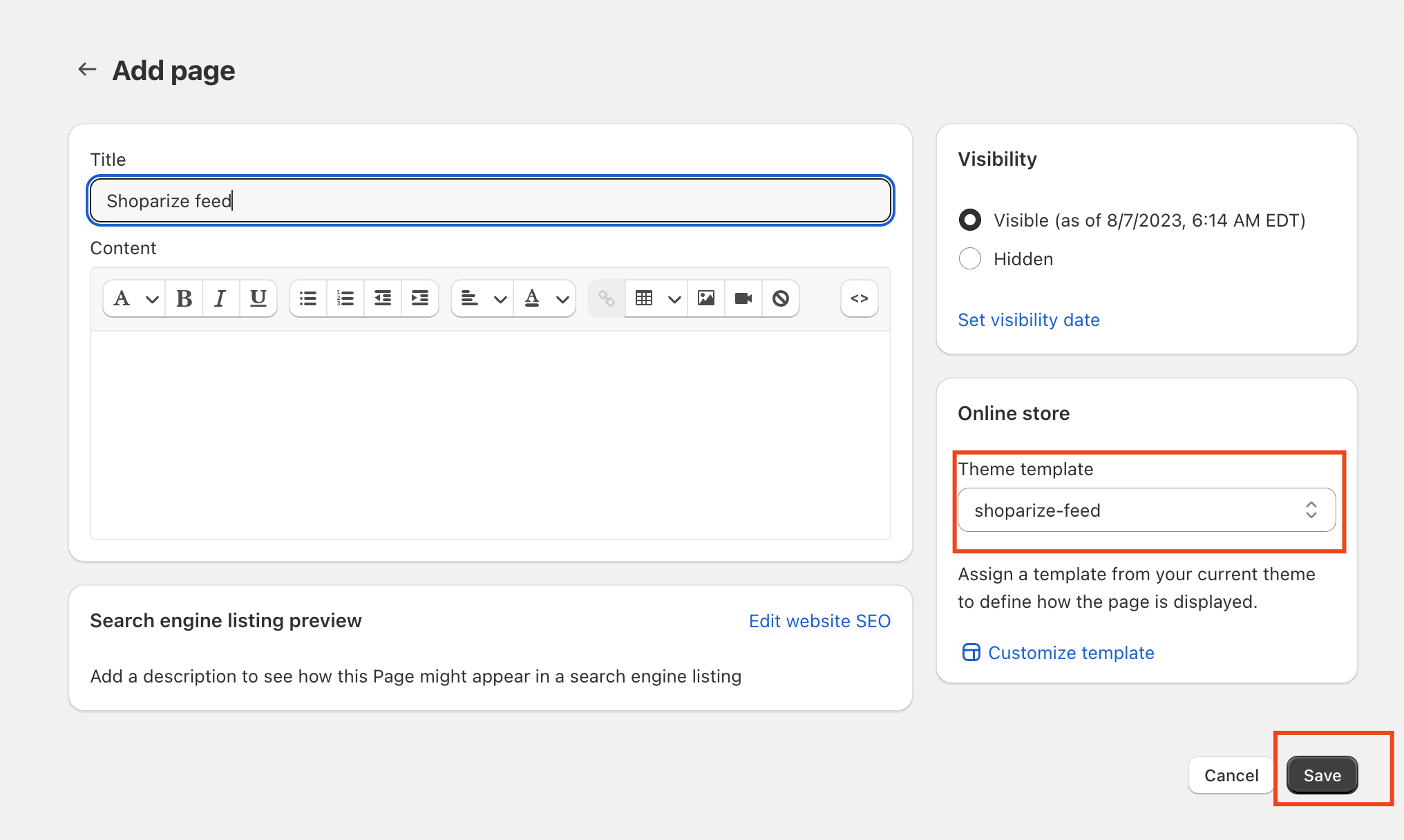
Ihr Produktfeed ist bereit.

Klicken Sie auf „Seite anzeigen“, um Ihre neue Produkt-Feed-Seite zu sehen. Oder besuchen Sie https://yourshoppage.com/pages/shoparize-product-feed

Wie kann ich EAN-/GTIN-Nummern zu meinem Feed hinzufügen?

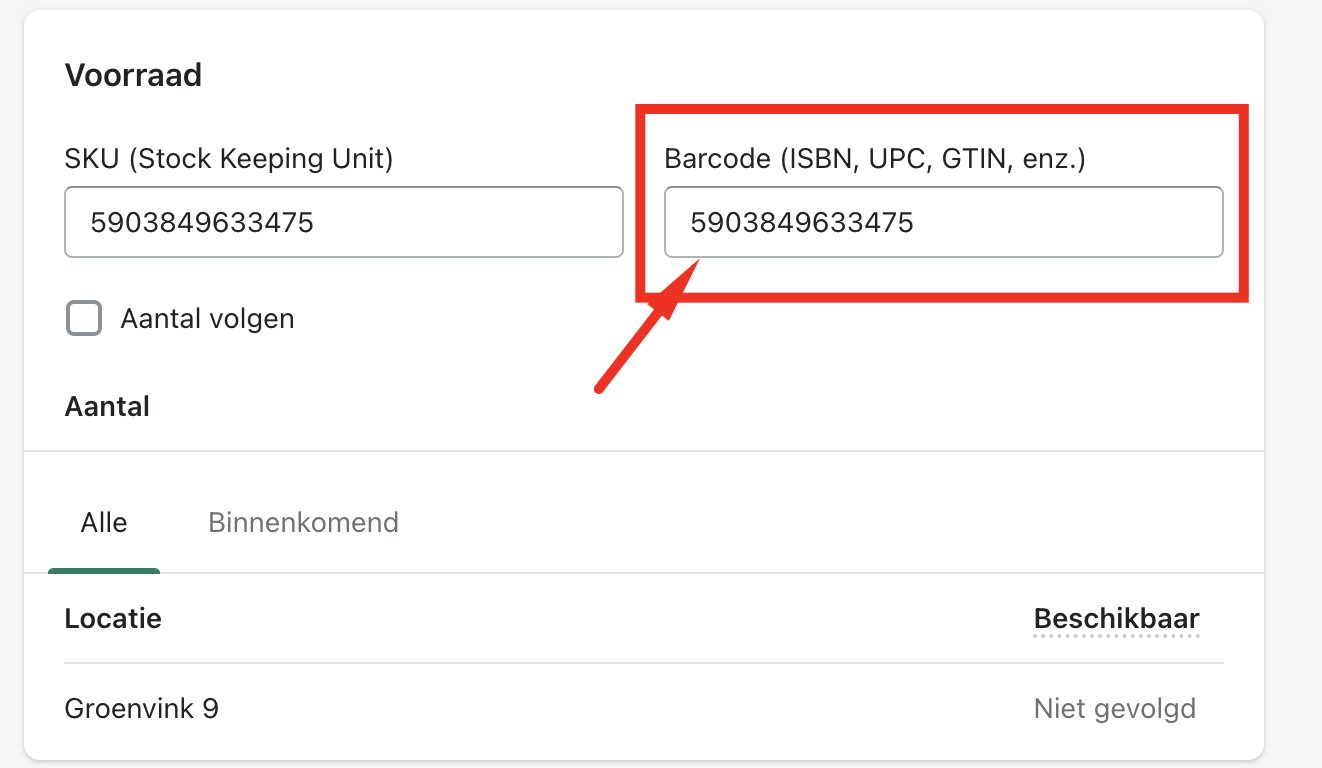
Sie müssen die Barcode-Nummern im Abschnitt Lagerbestand – Barcode auf der Produktdetailseite hinzufügen.

Download the full guide

Get the PDF version and keep the checklist close while you work through setup.

Want help choosing the right Shopping setup?

Talk to our team and we will recommend the right path for your store, market, and product feed.

Talk to our team