Skip to content

Jak mogę stworzyć darmową stronę Product Feed w Shopify?

Shoparize E-commerce growth team
Download PDF Read below

Cel

Utworzysz stronę z plikiem produktowym w formacie Google Shopping, aby używać jej z Shoparize | partner zgodnie z tym samouczkiem.

Spis treści

  • Utwórz szablon strony z feedem produktowym
  • Dodaj stronę z plikiem produktowym
  • Jak mogę dodać numery EAN/GTIN do mojego feedu produktowego?

Instrukcje

Utwórz szablon strony z feedem produktowym

Zaloguj się do swojego konta Shopify i przejdź do swojego sklepu.

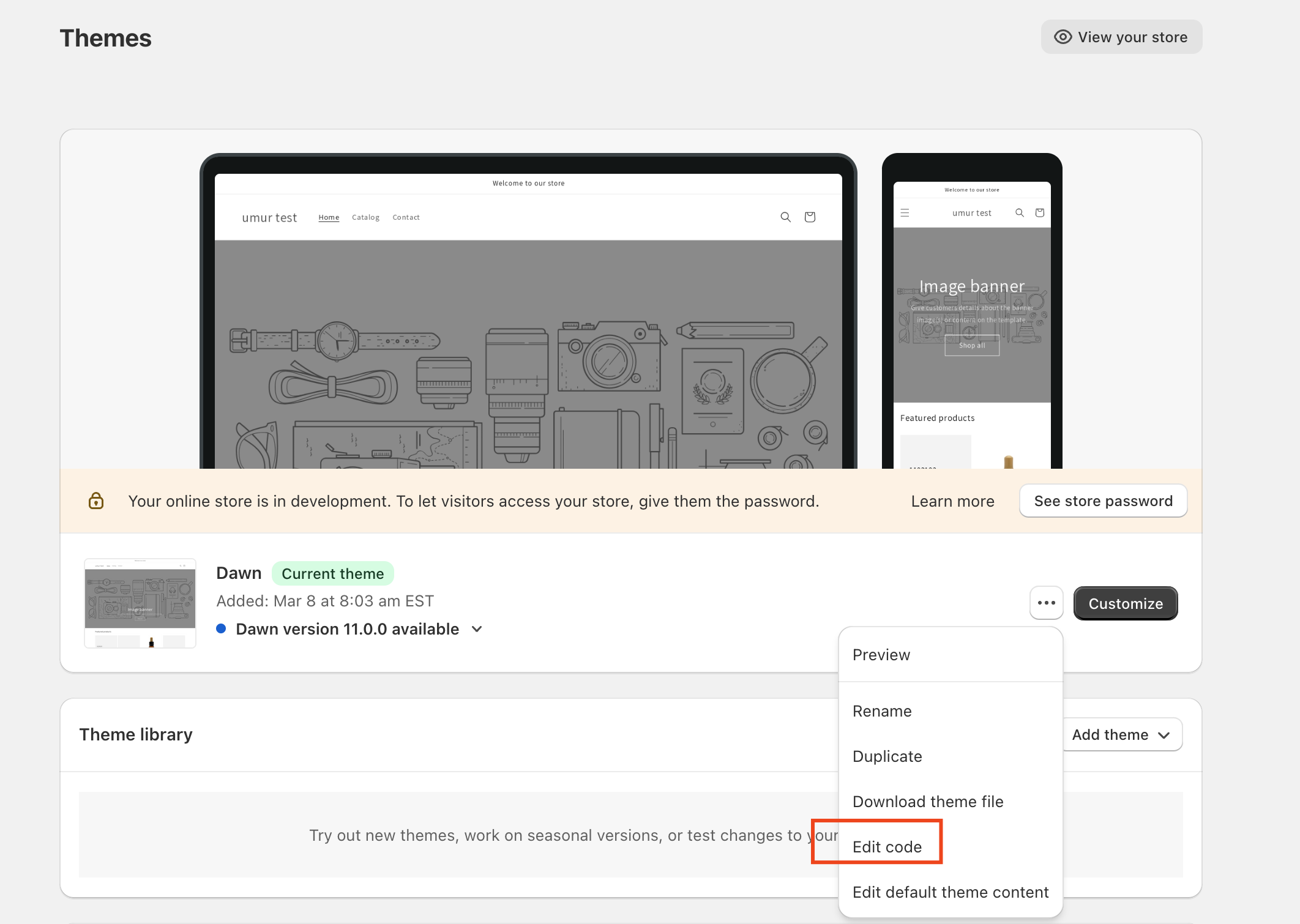
Kanały sprzedaży > Sklep online > Motywy

Kliknij Działania przycisk w aktywnym motywie i wybierz Edytuj kod
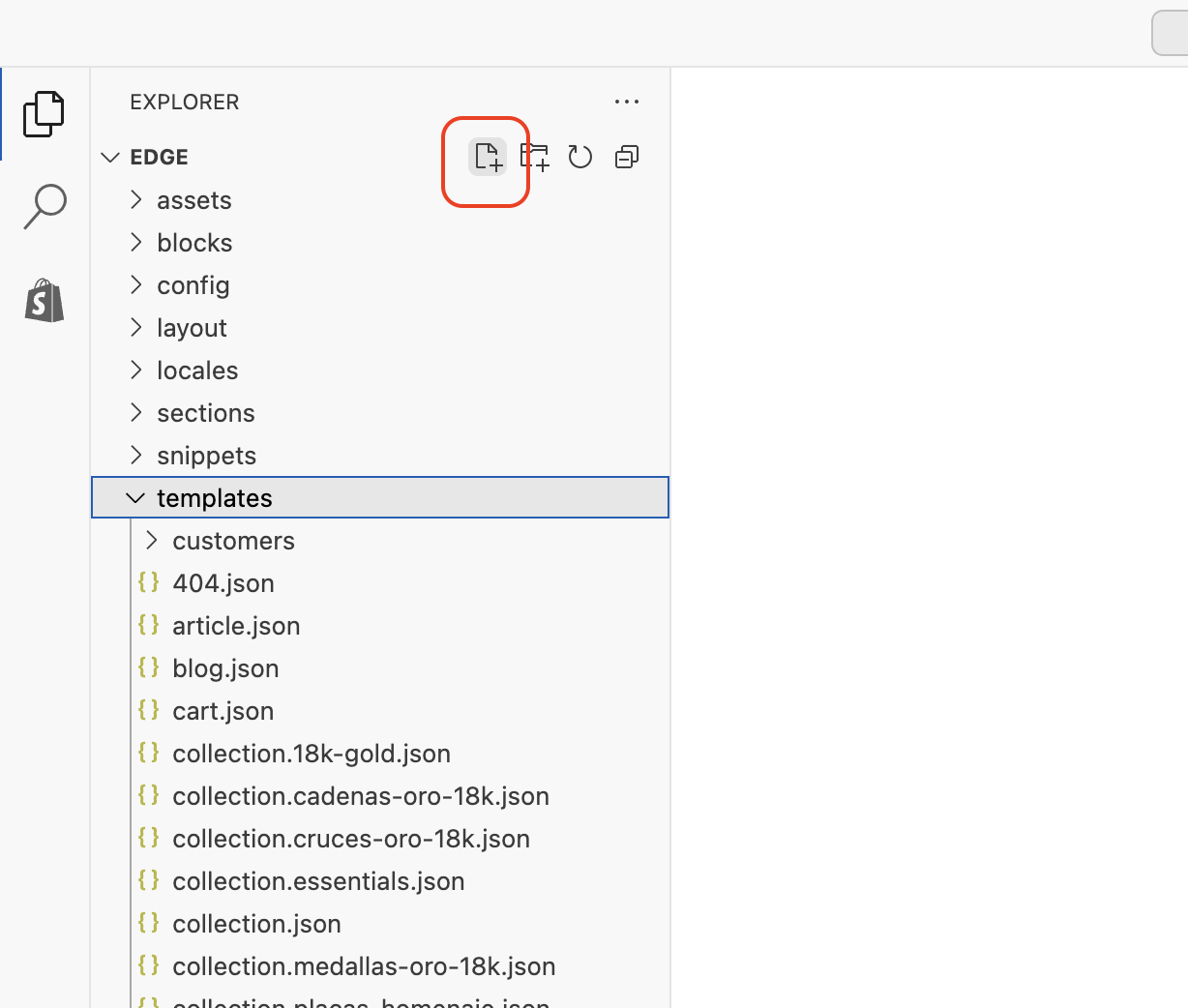
Kliknij, aby dodać nowy plik w sekcji Szablony
Wpisz nazwę pliku, aby page.shoparize-feed.liquid
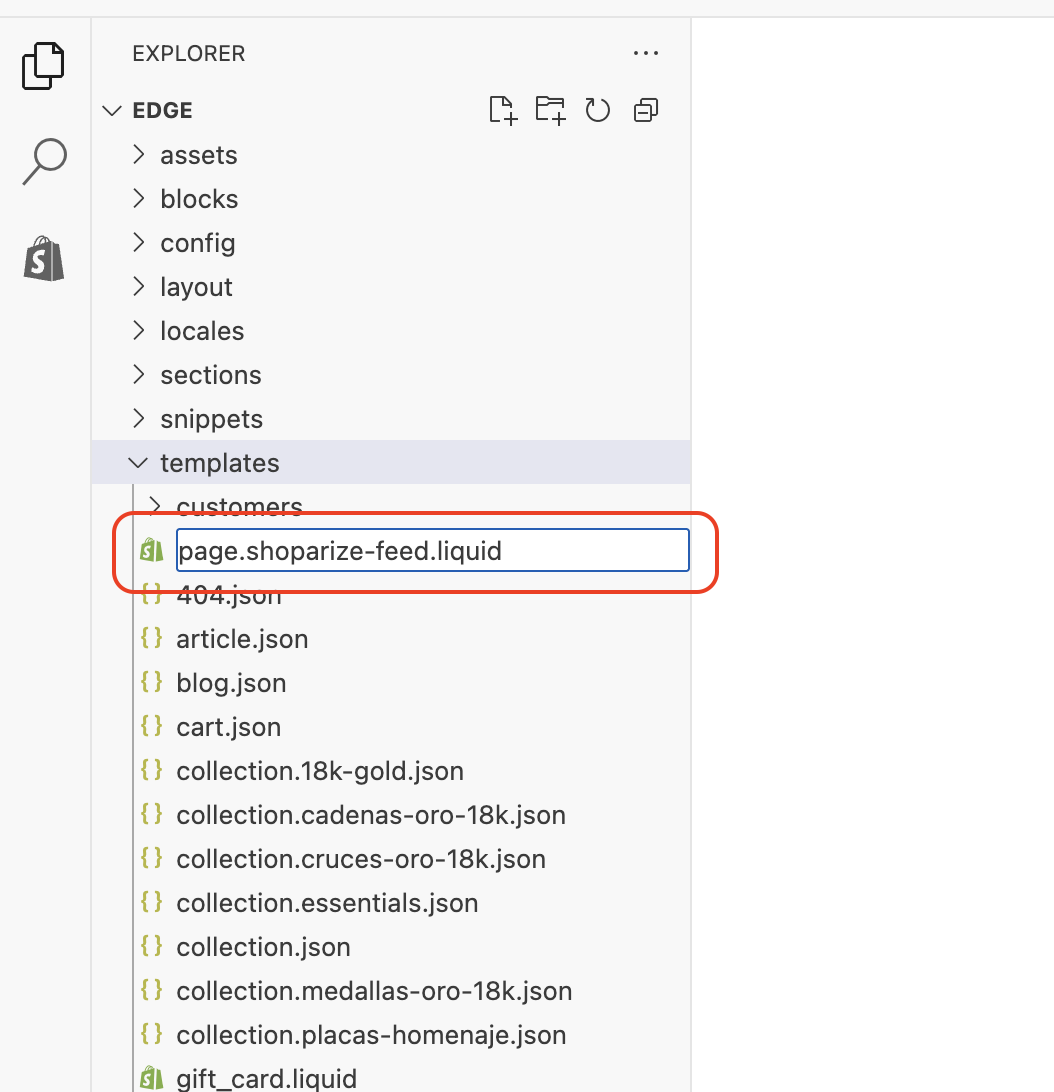
Po kliknięciu przycisku Create template Shopify przekieruje Cię do edycji tego nowego szablonu strony.

Usuń całą zawartość pola tekstowego, a następnie skopiuj i wklej poniższy szablon feedu produktowego.

html

                                {%- layout none -%}
                              
                                <
                              ?xml version
                                =
                              
                                "1.0"
                               encoding
                                =
                              
                                "UTF-8"
                               ?
                                >
                              

                                <rss xmlns:g="http://base.google.com/ns/1.0" version="2.0">
                              
  
                                <channel>
                              
    
                                <title>
                              
                                {{shop.name | escape }}
                               Products
                                </title>
                              
    
                                <link>
                              
                                {{shop.url}}
                              
                                </link>
                              
    
                                {% for collection in collections %}
                              
    
                                {% for product in collection.products %}
                              
        
                                <!-- Item #{% increment index %} -->
                              
        
                                <item>
                              
          
                                <g:id>
                              
                                {{product.id}}
                              
                                </g:id>
                              
          
                                <g:title>
                              
                                <![CDATA[{{ product.title | strip_html | strip_newlines | escape | replace: 'amp;', 'and' | replace: '&#38;', 'and' | replace: "é", "e" | replace: "à ", "a" }}]]>
                              
                                </g:title>
                              
          
                                <g:brand>
                              
                                {{product.vendor | escape }}
                              
                                </g:brand>
                              
          
                                <g:product_type>
                              
                                {{product.type | escape }}
                              
                                </g:product_type>
                               
          
                                <g:condition>
                              Nowy
                                </g:condition>
                              
          
                                <g:description>
                              
                                <![CDATA[{{ product.description | strip_html | strip_newlines | replace: 'amp;', 'and' | replace: '&#38;', 'and' | replace: "..", ". " | replace: " ", " " | replace: "‘", "&#39;" | replace: "’", "&#39;" | replace: "&#8216;", "&#39;" | replace: "&#8217;", "&#39;" | replace: "&#8217;", "&#39;" | replace: "’", "&#39;" | replace: "“", "&#39;" | replace: "‘", "&#39;" | replace: "´", "&#39;" | replace: "“", "&#34;" | replace: "â€", "&#34;" | replace: "&#8211;", "-" | replace: "–", "-" | replace: "â€â€", "-" | replace: "–", "&mdash;" | replace: "—", "&mdash;" | replace: "%", "&#37;" | replace: "©", "&copy;" | replace: "®", "&reg;" | replace: "â„¢", "&trade;" | replace: "£", "&pound;" | replace: "ï¿­", "&#42;" | replace: "•", "&#42;" | replace: "â€Â", "&#39;" | replace: "&#233;", "e" | replace: "é", "e" | replace: "à ", "a" | replace: "ó", "o" | replace: "ê", "e" | replace: "Ø", "O" | replace: "&#8482;", "" | replace: "&#174;", "" }}]]>
                              
                                </g:description>
                              
          
                                <g:image_link>
                              
                                {{product.featured_image | product_img_url: 'large'}}
                              
                                </g:image_link>
                              
          
                                <g:link>
                              
                                {{shop.url}}
                              
                                {{product.url}}
                              
                                </g:link>
                              
          
                                <g:price>
                              
                                {{product.compare_at_price | money_without_currency}}
                               
                                {{shop.currency}}
                              
                                </g:price>
                              
                                <g:sale_price>
                              
                                {{product.price | money_without_currency}}
                               
                                {{shop.currency}}
                              
                                </g:sale_price>
                              
          
                                <g:availability>
                              
                                {% if product.available %}
                              in_stock
                                {%- else -%}
                              out_of_stock
                                {%- endif %}
                              
                                </g:availability>
                               
                                <g:gtin>
                              
                                {%- assign current_variant = product.selected_or_first_available_variant -%}
                              
                                {% if current_variant.barcode %}
                              
                                {{current_variant.barcode}}
                              
                                {%- else -%}
                              
                                {%- endif %}
                              
                                </g:gtin>
                              
        
                                </item>
                              
      
                                {% endfor %}
                              
    
                                {% endfor %}
                              
  
                                </channel>
                              

                                </rss>
                              

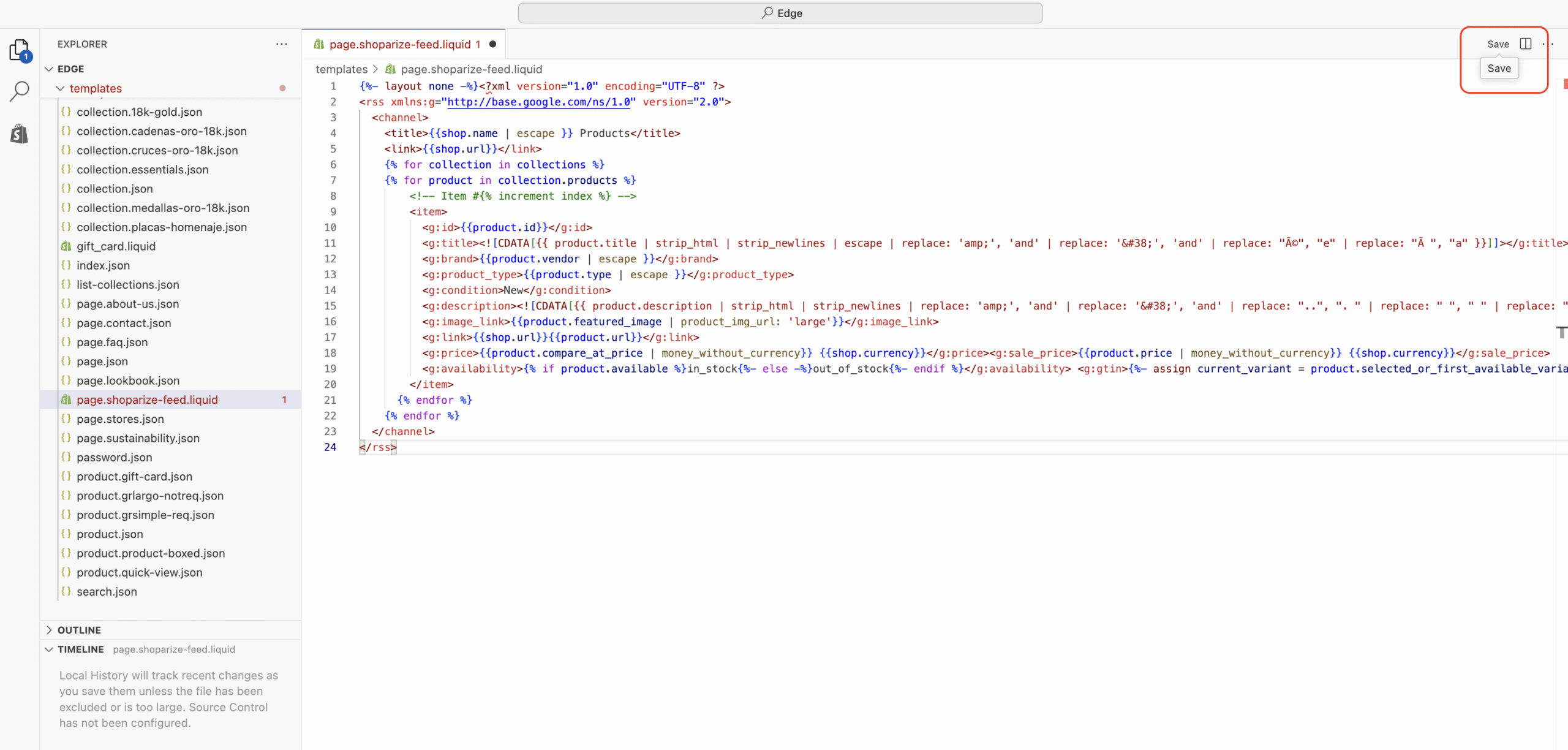
Zapisz szablon
Dodaj stronę z plikiem produktowym

Przejdź do Sales Channels > Online Store > Pages i dodaj nową stronę.

Dodaj Shoparize Product Feed do tytułu

Wybierz shoparize-feed jako szablon motywu

Zapisz stronę.
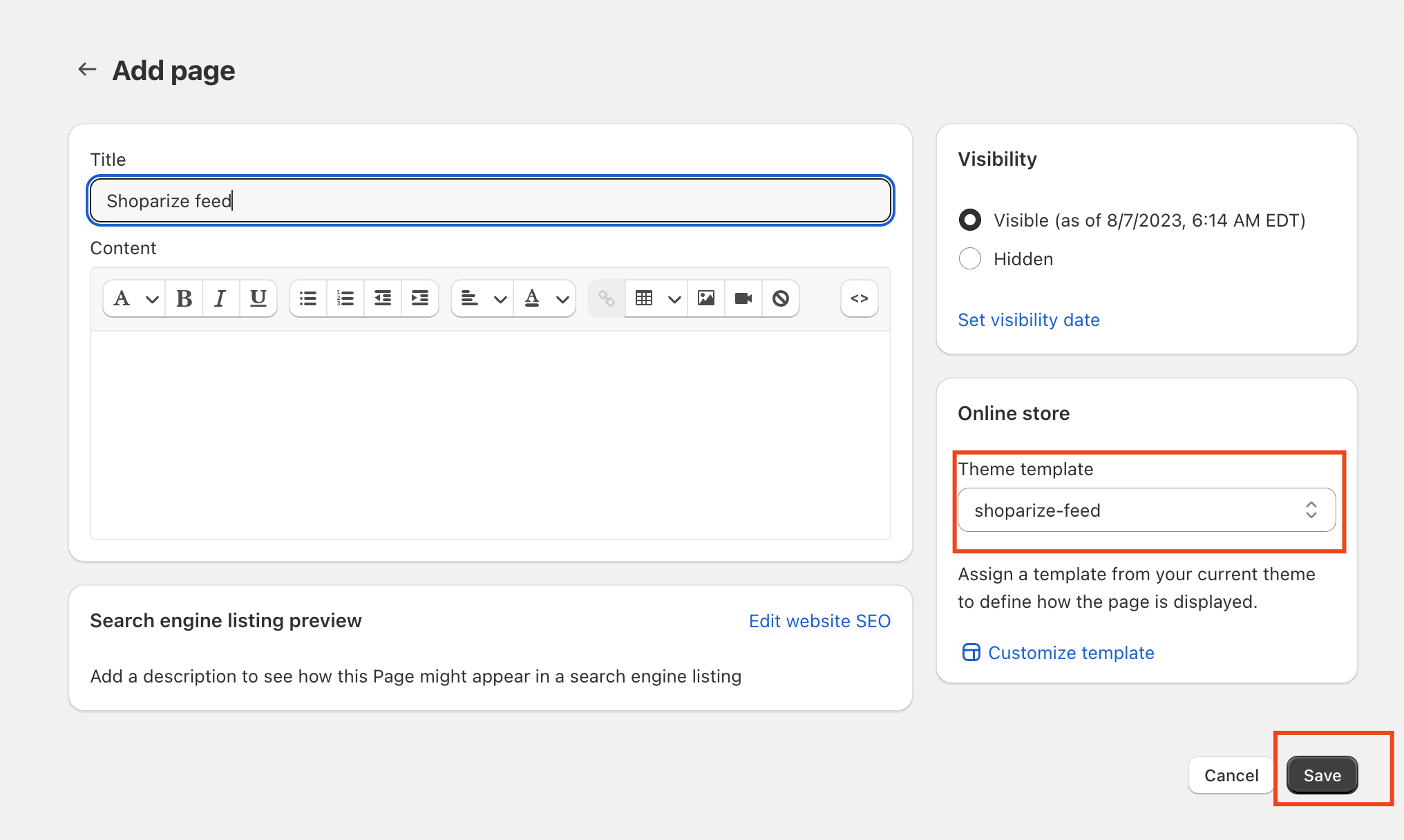
Twój feed produktowy jest gotowy.

Kliknij, aby otworzyć podgląd strony i zobaczyć swoją nową stronę z feedem produktowym. Możesz też odwiedzić https://yourshoppage.com/pages/shoparize-product-feed

Jak mogę dodać numery EAN/GTIN do mojego feedu?

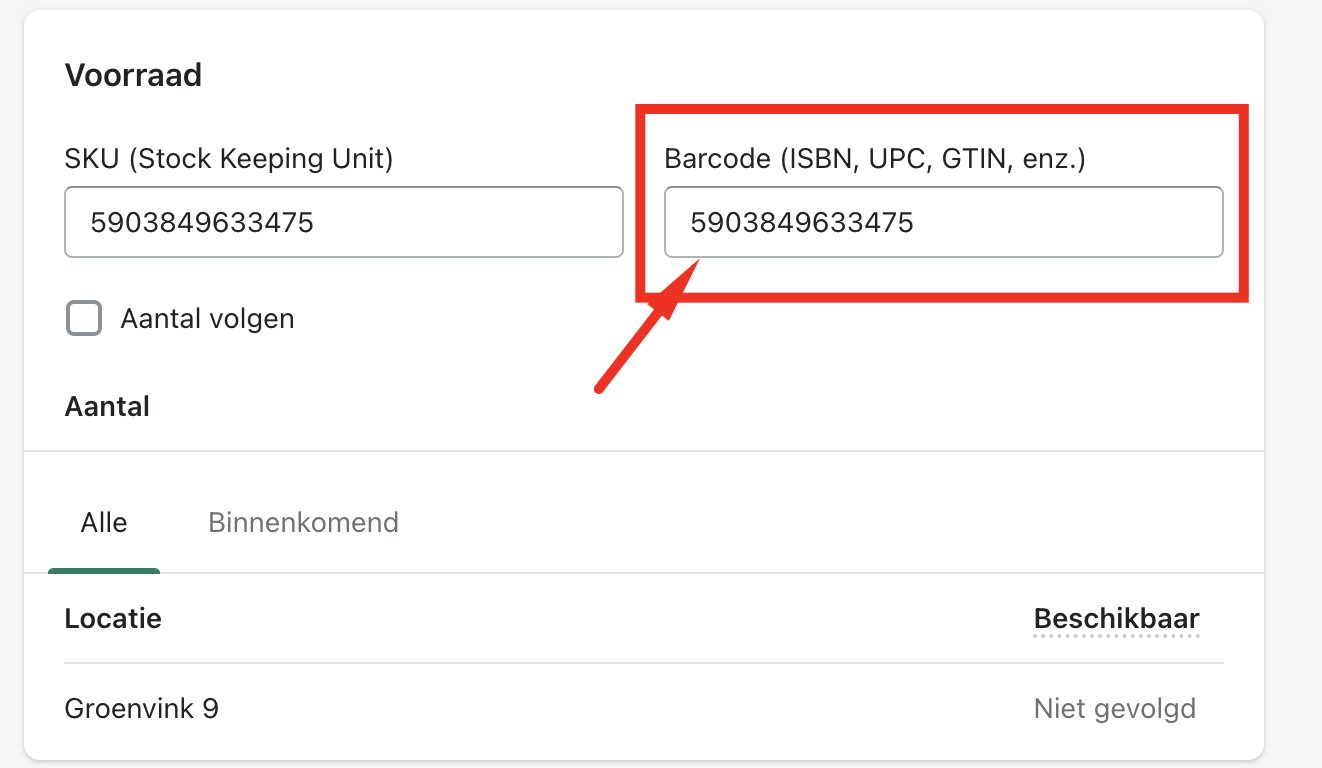
Musisz dodać numery kodów kreskowych w sekcji Stan magazynowy – Kod kreskowy na stronie szczegółów produktu.
Download the full guide

Get the PDF version and keep the checklist close while you work through setup.

Want help choosing the right Shopping setup?

Talk to our team and we will recommend the right path for your store, market, and product feed.

Talk to our team