Prerequisites
Before starting, make sure you have:
- Access to Google Tag Manager for the store
- A Shoparize Partner account
- Use the Shop ID assigned to your shop in your dashboard. Go to shop → install shoparize tracking integration
- Purchase event already available in GTM (e.g. purchase custom event)
- Required GTM variables (Transaction ID, Order Value, Currency, Items, etc.)
1. Import the Shoparize GTM Template
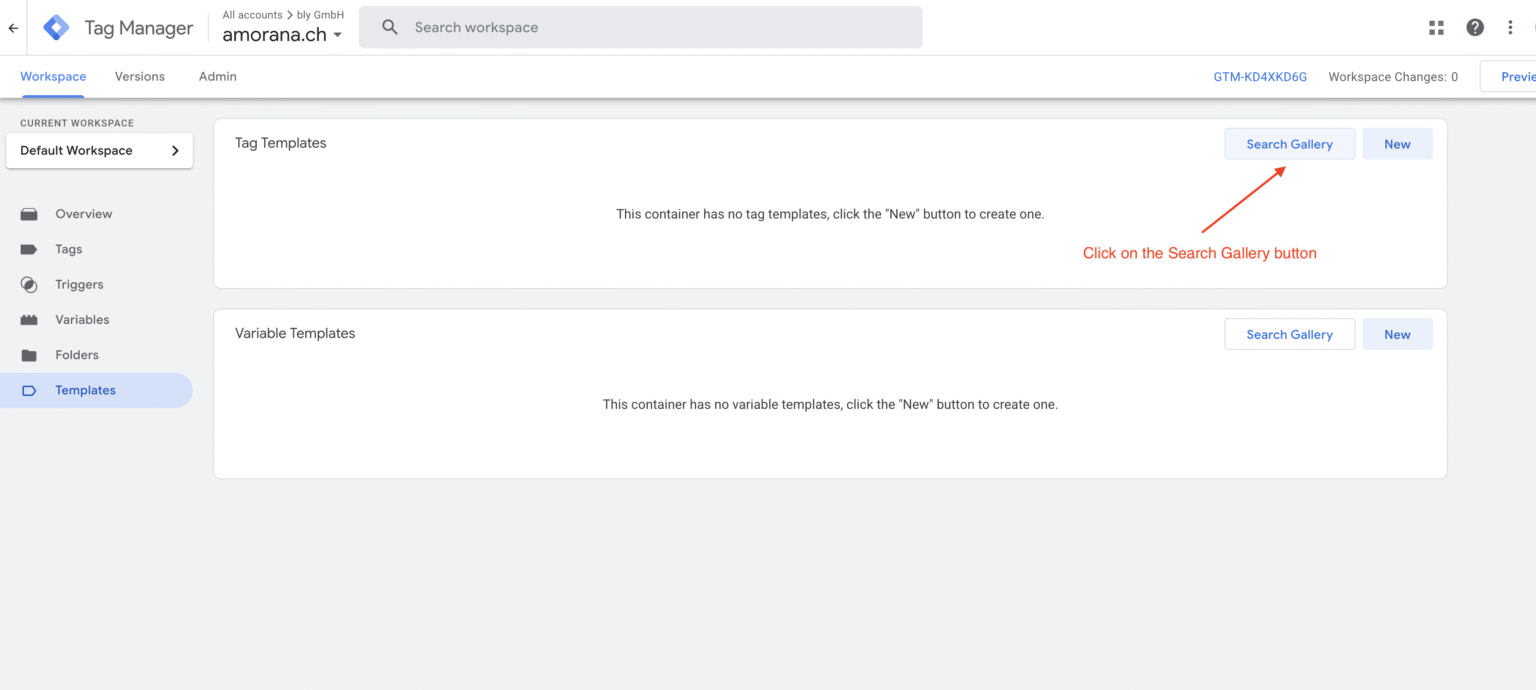
Step 1.1 – Open Templates section
In Google Tag Manager:
- Open the correct Container
- Go to Templates
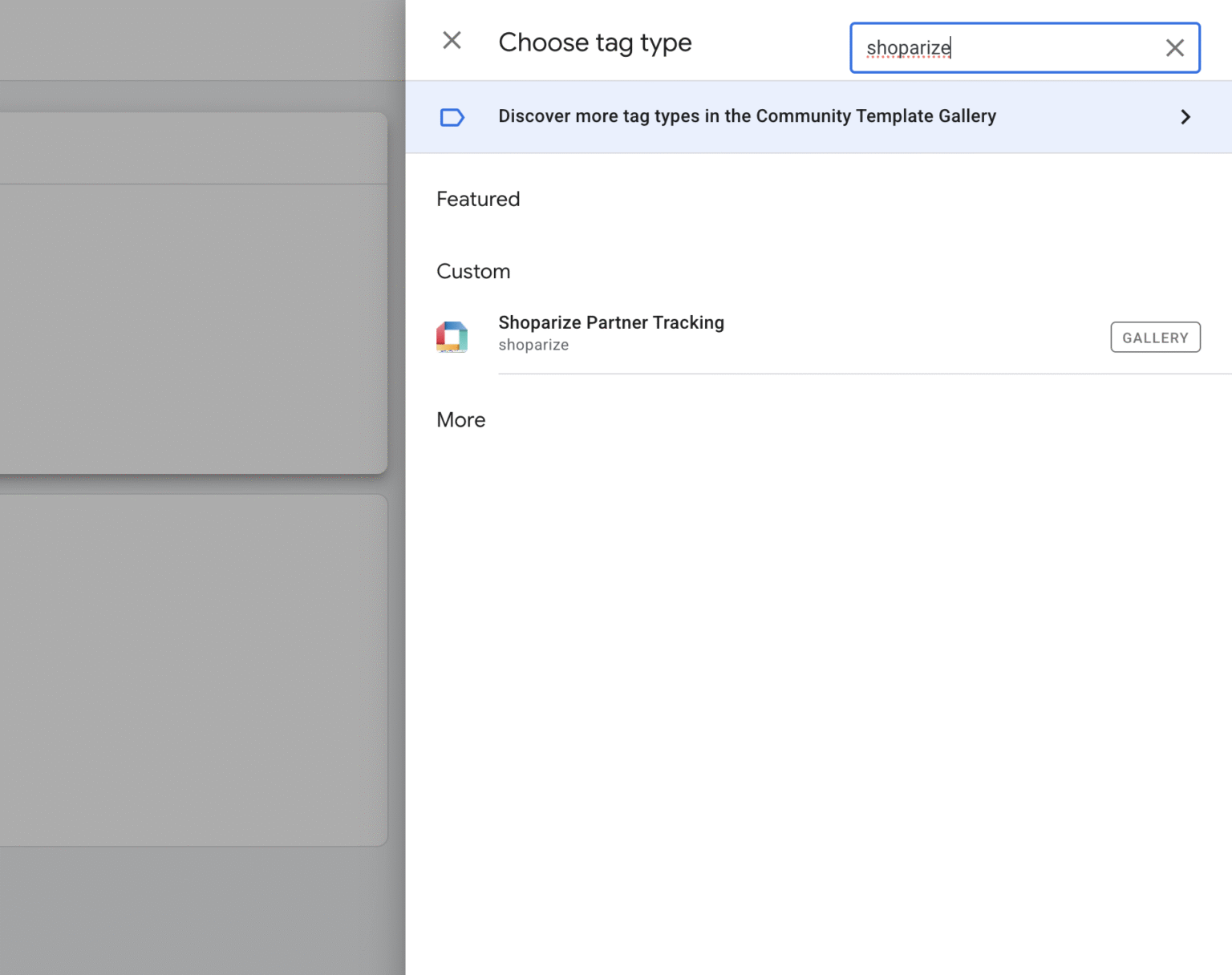
- Under Tag Templates, click Search Gallery
Step 1.2 – Search and import template
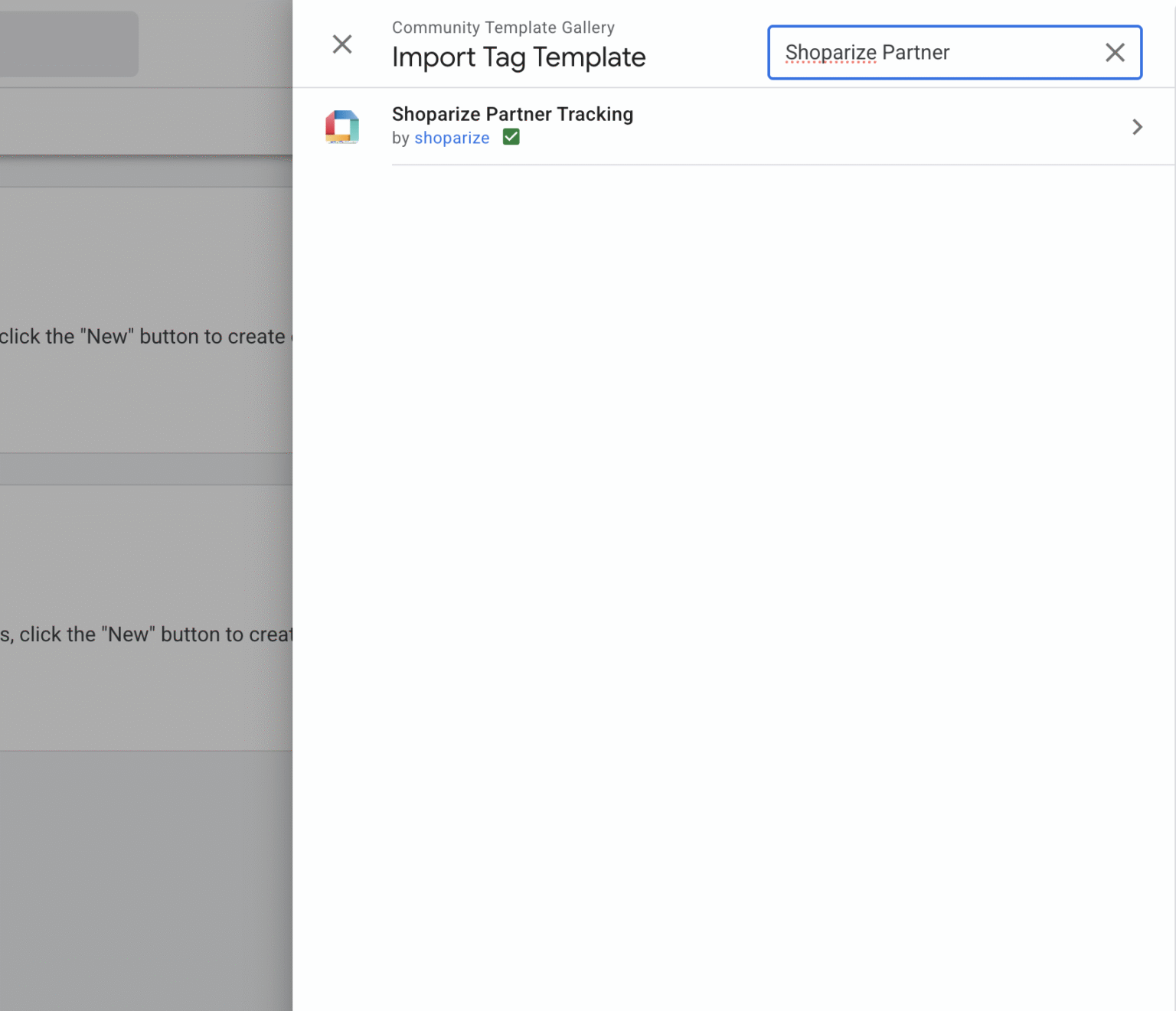
- Search for Shoparize Partner
- Select Shoparize Partner Tracking
- Click Add to workspace
- Accept all permissions
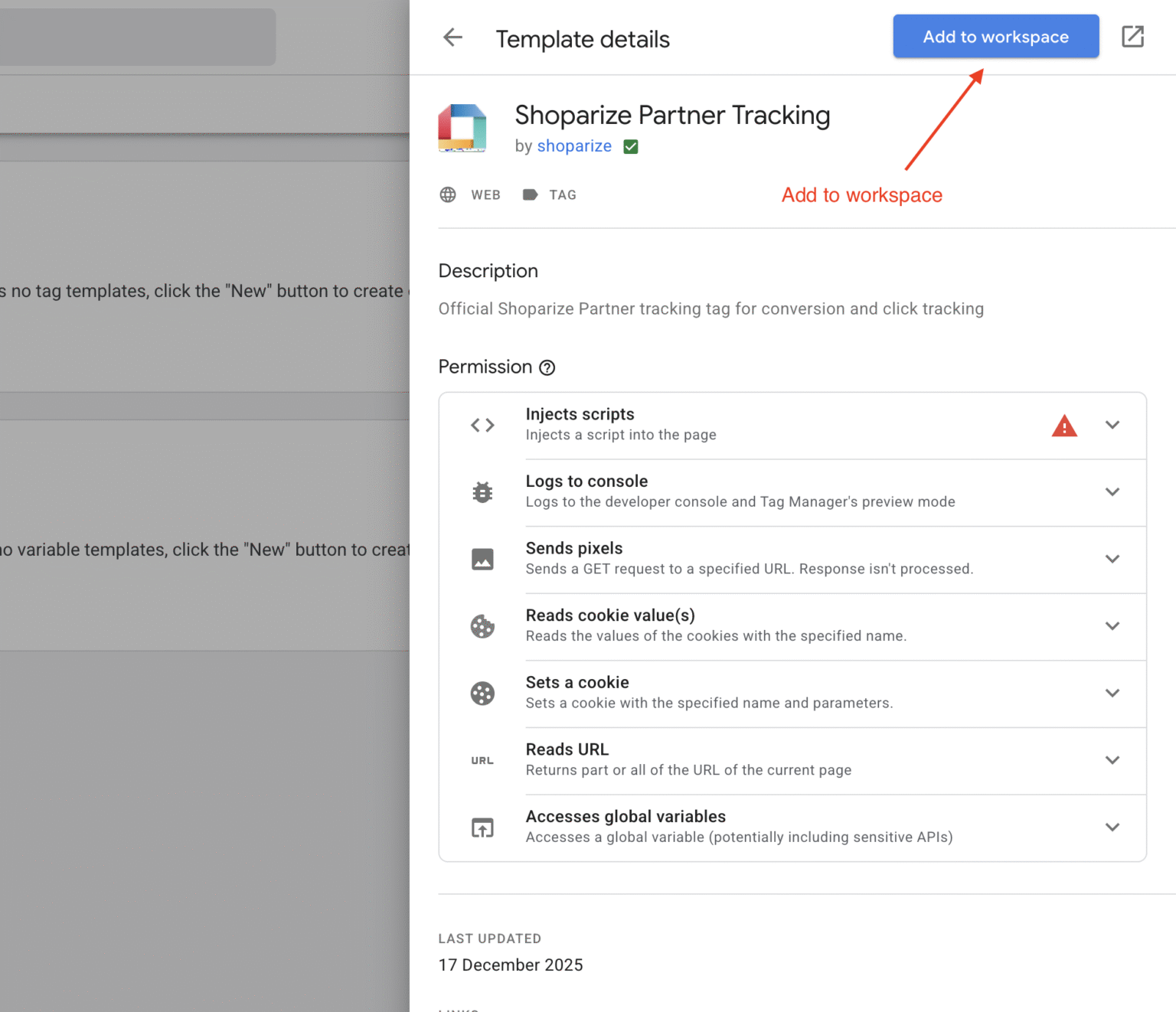
After this step, the Shoparize Partner Tracking template is available in your container.
2. Create the Shoparize Init Tag
The Init tag initializes click tracking and must fire on all pages.
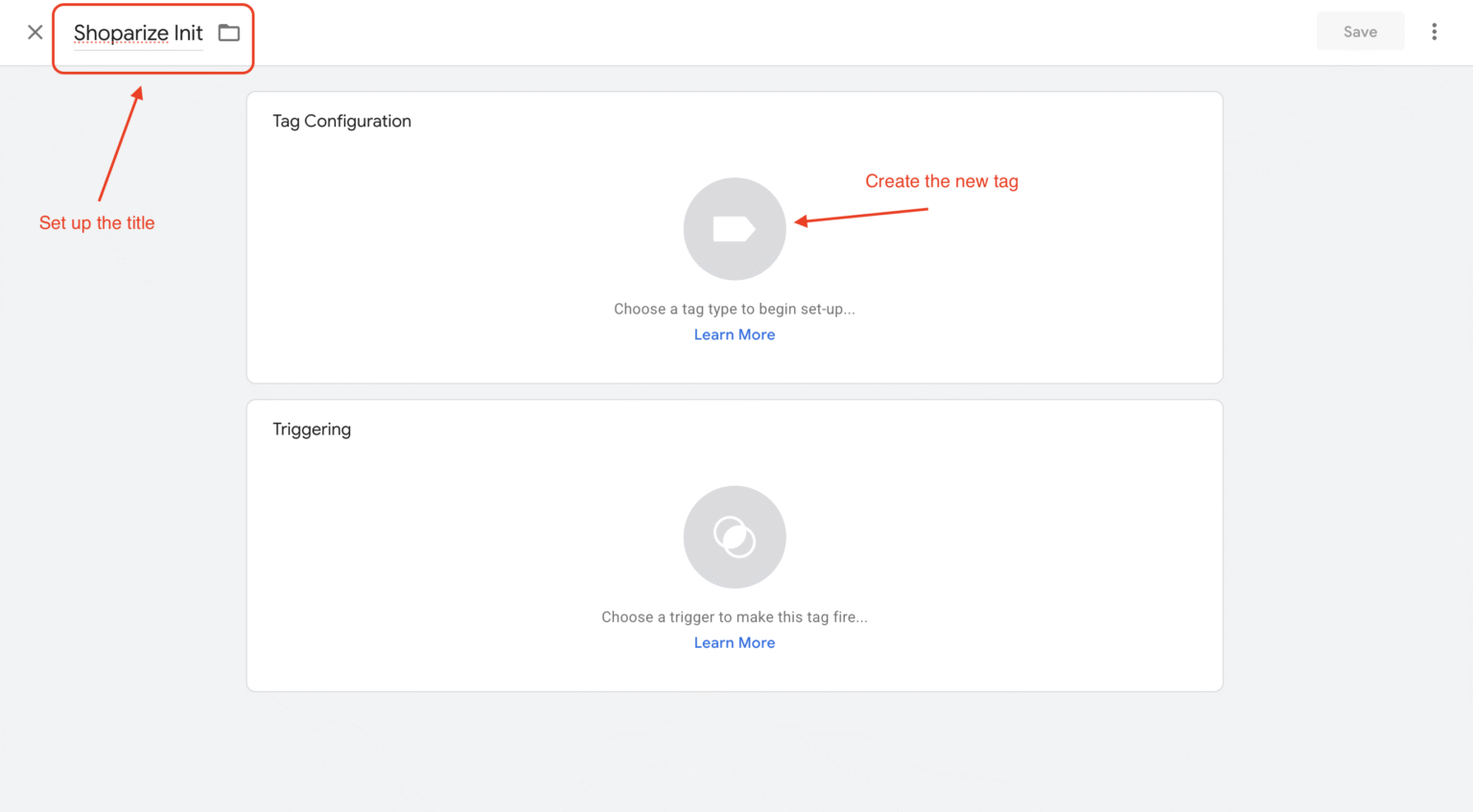
Step 2.1 – Create a new tag
- Go to Tags
- Click New
- Set the tag name to: Shoparize Init
Step 2.2 – Configure tag type
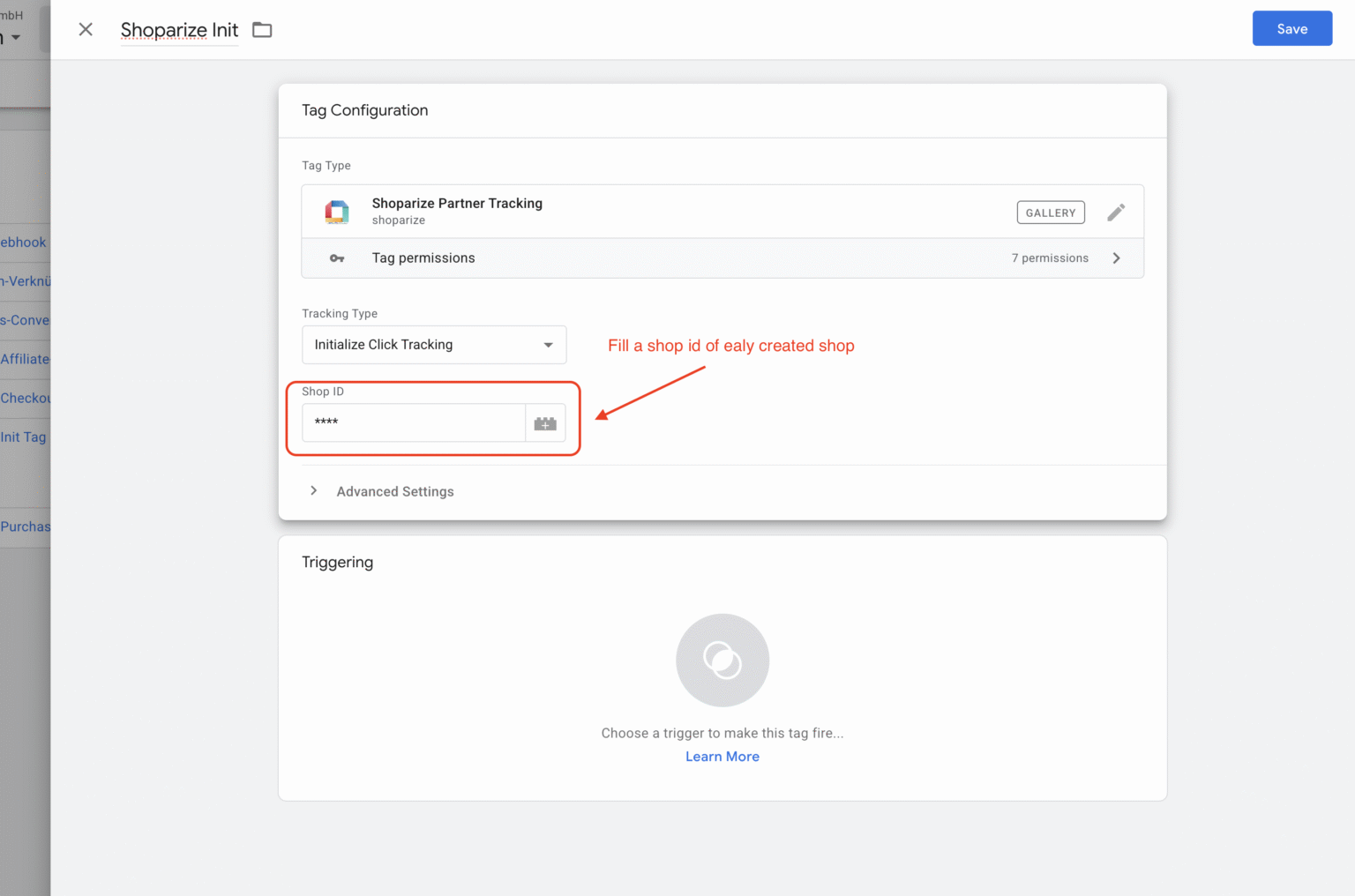
- Click Tag Configuration
- Choose Shoparize Partner Tracking
- Set:
- Tracking Type: Initialize Click Tracking
- Shop ID: <YOUR SHOPARIZE SHOP ID>
⚠️ Use the same Shop ID that exists in Shoparize
Step 2.3 – Set triggering
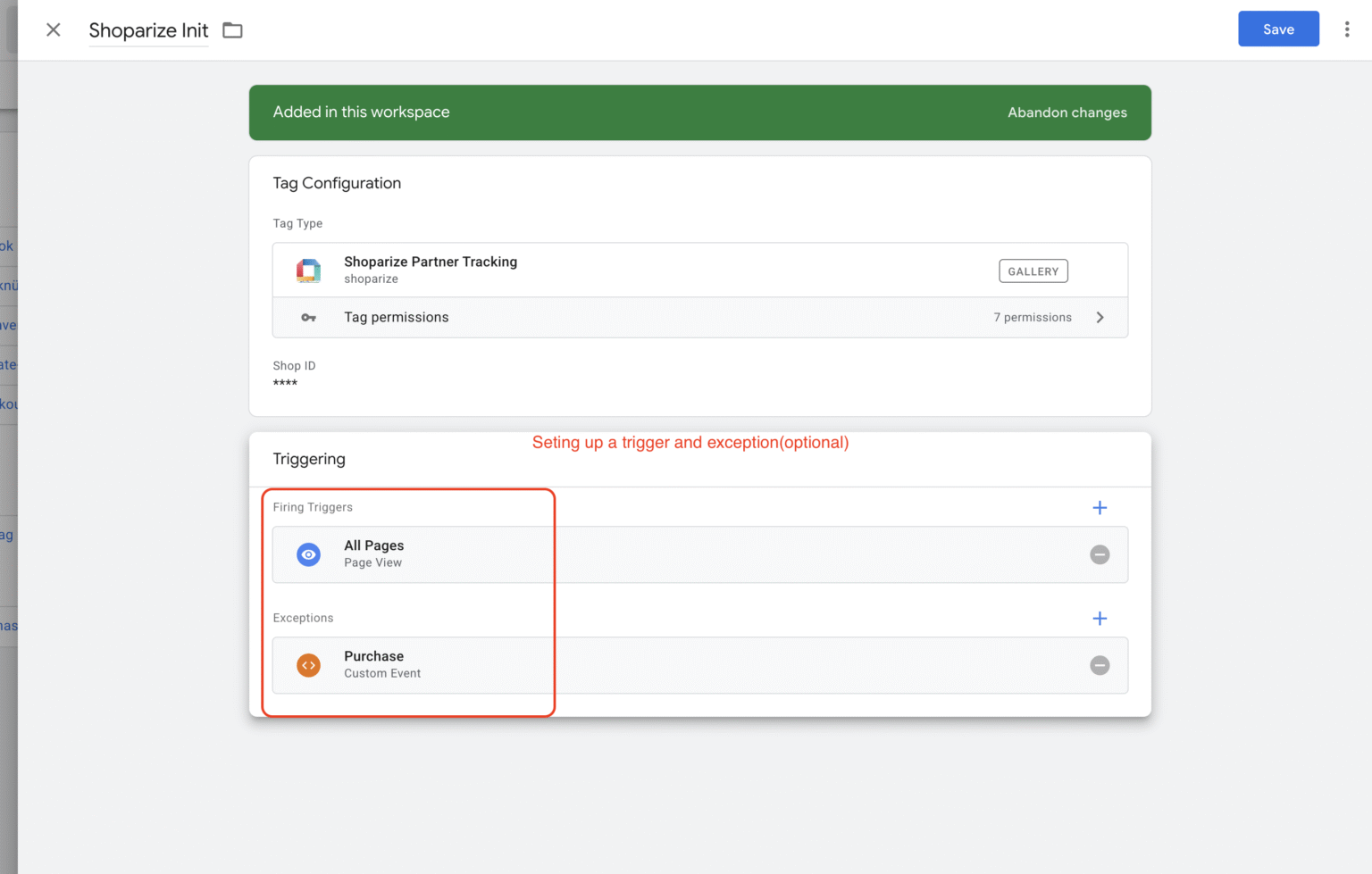
- Trigger: All Pages
- (Optional) Exception: Purchase event → prevents init firing on purchase page
3. Create the Shoparize Purchase Tag
This tag sends conversion data to Shoparize.
Step 3.1 – Create new tag
- Go to Tags
- Click New
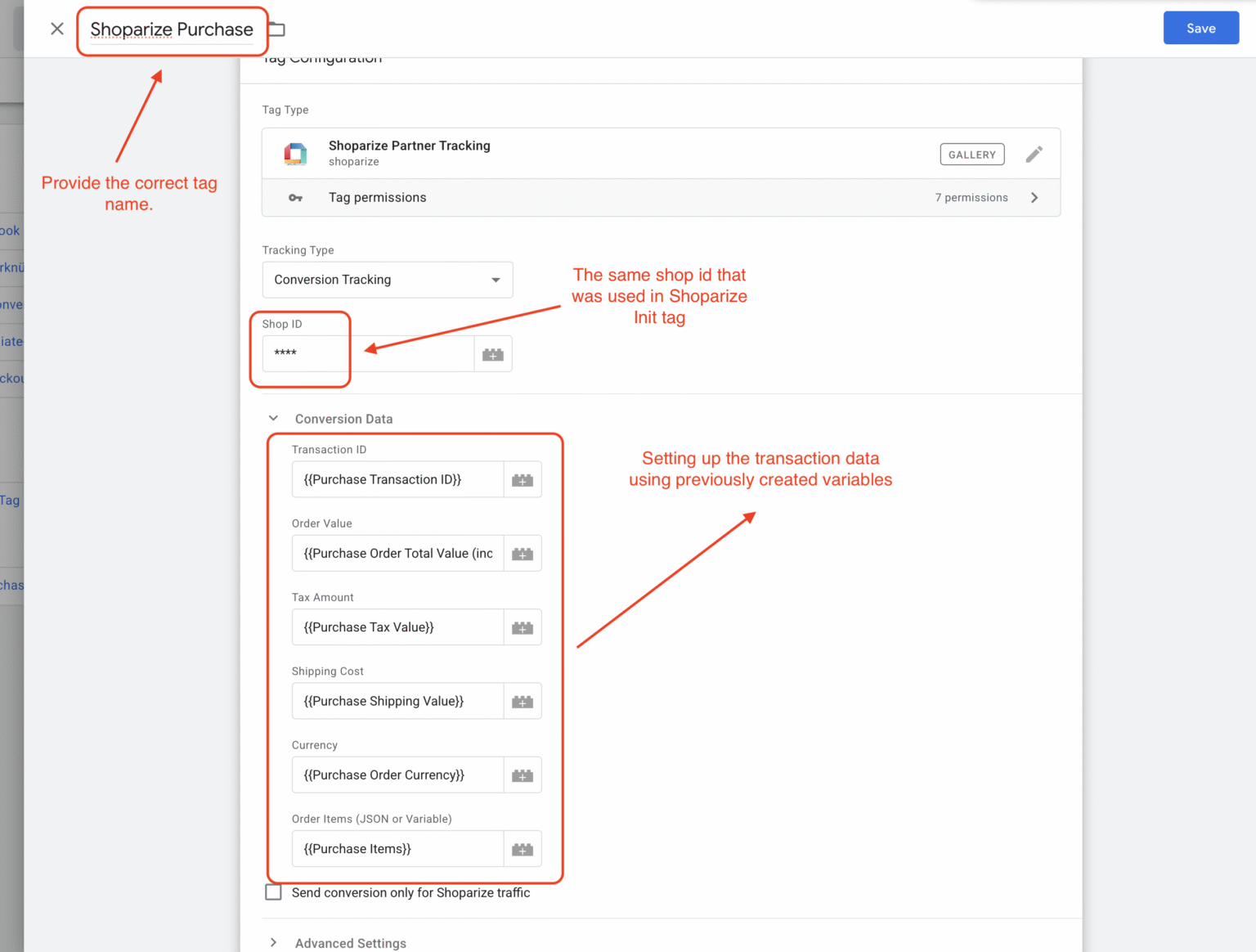
- Name the tag: Shoparize Purchase
Step 3.2 – Configure tag type
- Choose Shoparize Partner Tracking
- Set:
- Tracking Type: Conversion Tracking
- Shop ID: <SAME SHOP ID AS INIT TAG>
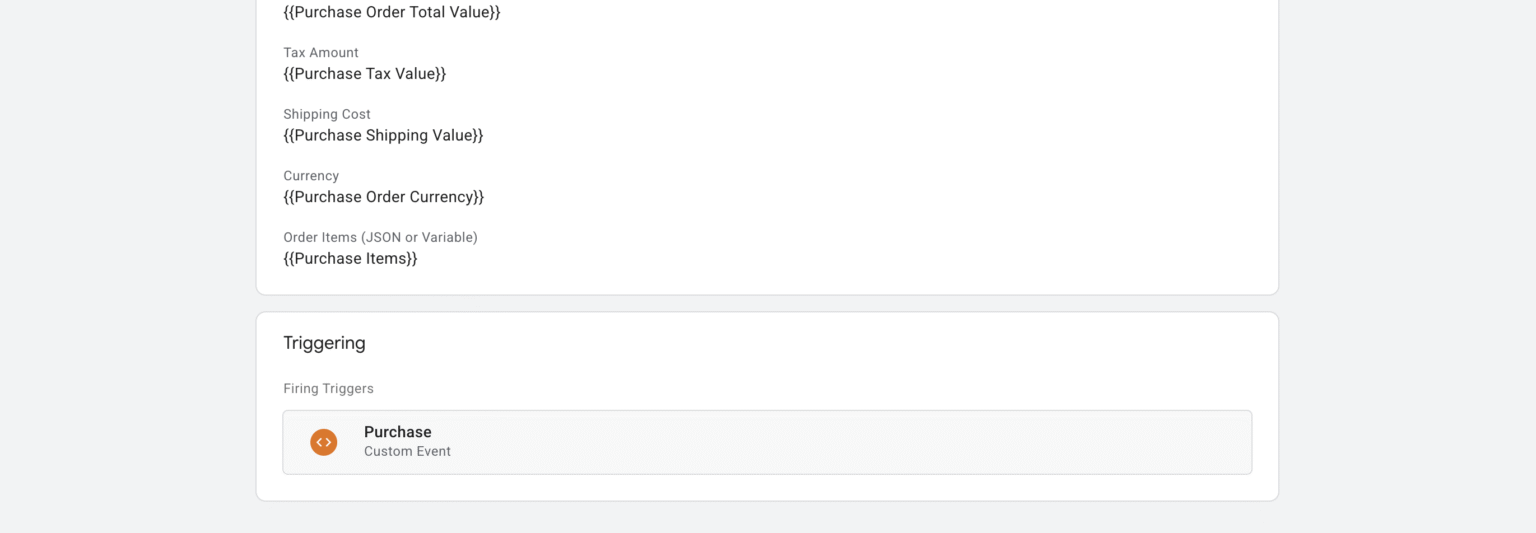
Step 3.3 – Configure conversion data
Map the fields using previously created GTM variables
Step 3.5 – Set triggering
- Trigger: Purchase (Custom Event)
4. Verify Setup
Step 4.1 – Preview mode
- Click Preview in GTM
- Open the store website
- Verify:
- Shoparize Init fires on page load
- Shoparize Purchase fires on purchase event only
5. Publish the Container
Once verified:
- Click Submit
- Add a version name, e.g. “Shoparize Partner Integration”
- Publish 🎉