Open Web Extras in Lightspeed
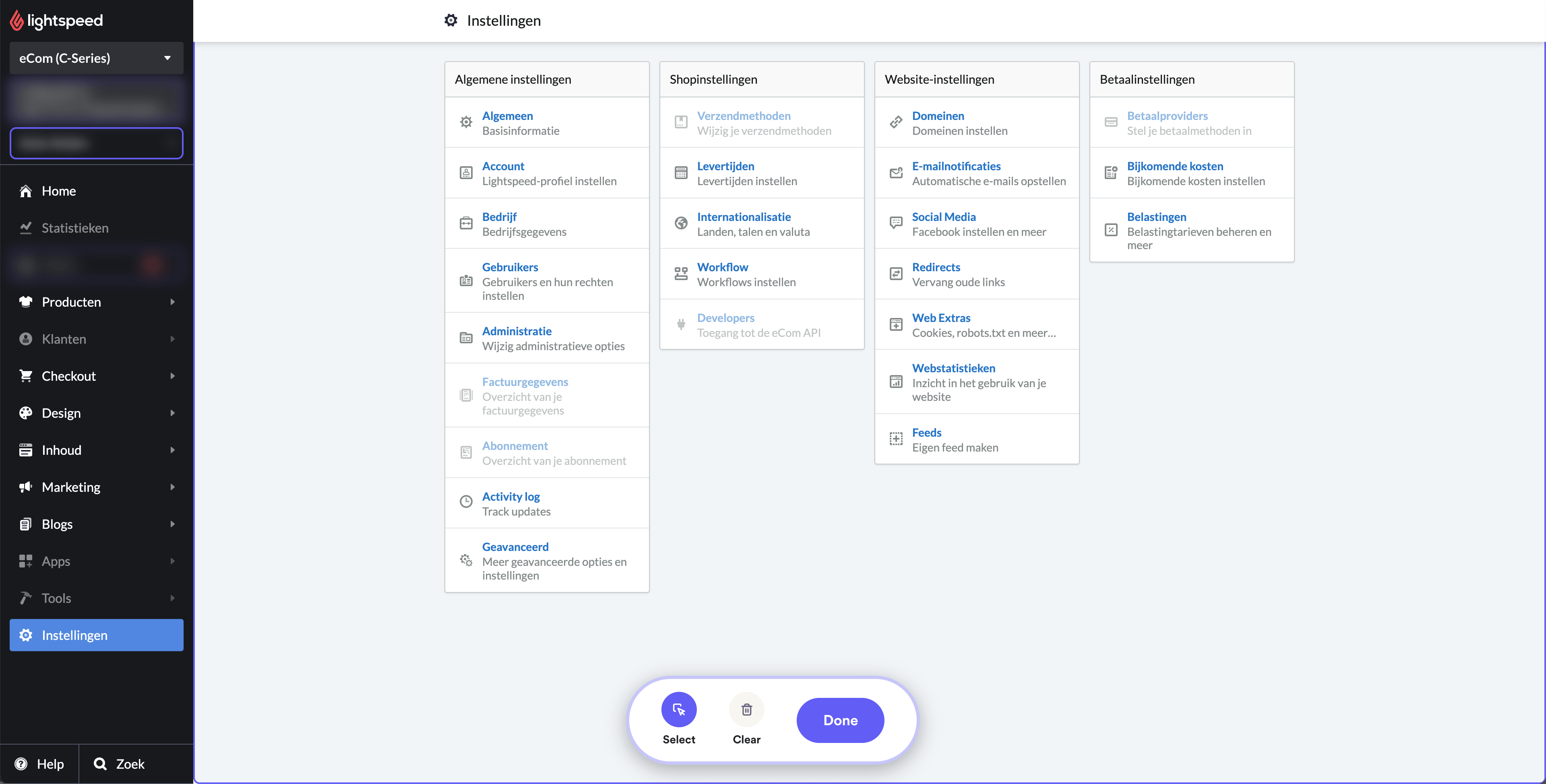
Users are required to first authenticate their credentials by logging into their Lightspeed account. Following successful login, they should navigate to the ‘Settings’ option, located typically on the main dashboard or within a dropdown menu.
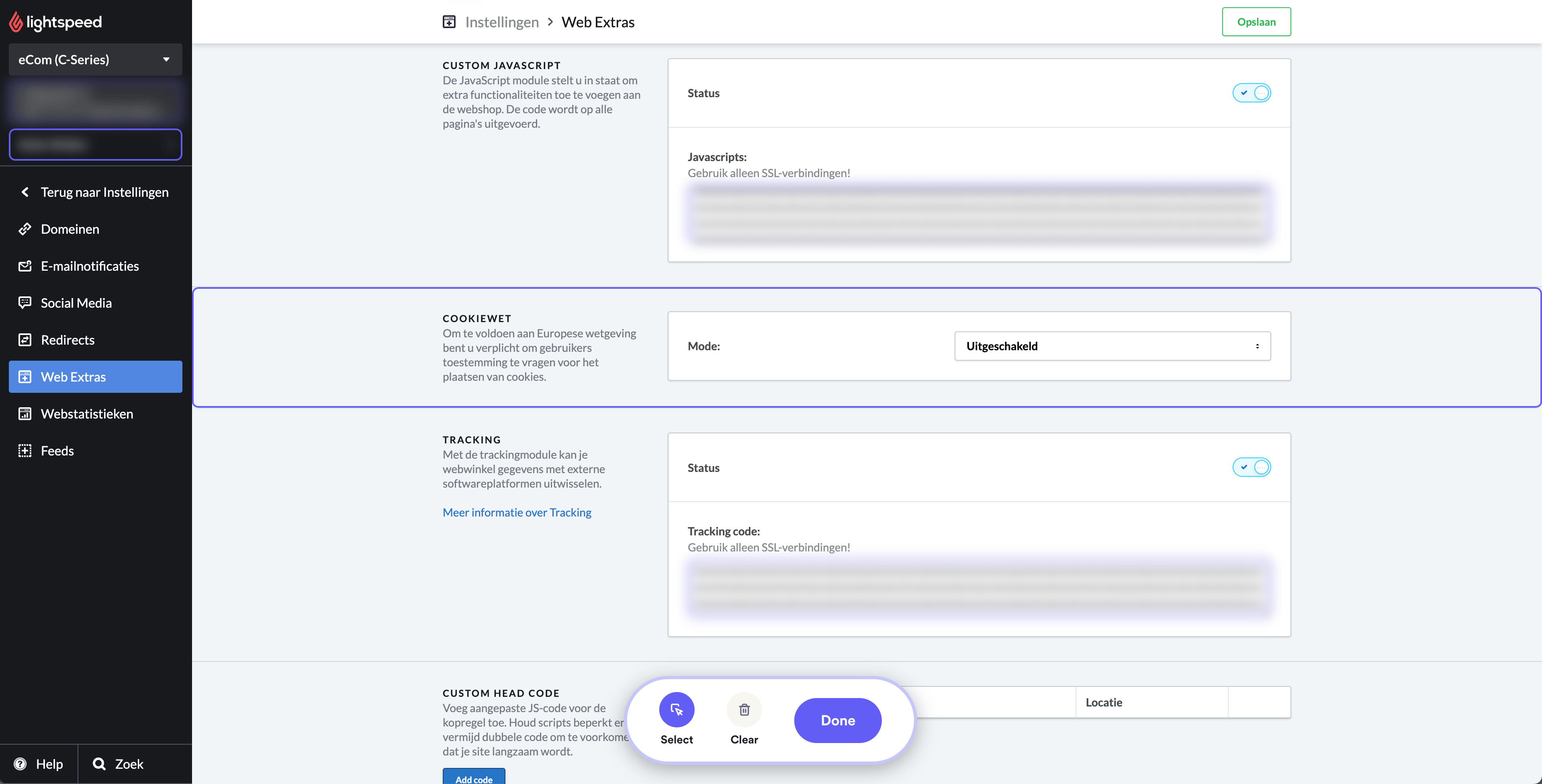
Once in ‘Settings’, they are to select ‘Web Extras’, a sub-category that facilitates additional customization features. Within ‘Web Extras’, there are two important sections: ‘Custom JavaScript’ and ‘Tracking’.
Add the Custom JavaScript code
In the ‘Custom JavaScript’ section, users are expected to copy and paste the code below. Don’t forget to change the field YOUR_SHOPARIZE_PARTNER_SHOPID with your real shop id
                          <script src="https://partner-cdn.shoparize.com/js/shoparize.js" defer="defer"></script>

<script>
       window.addEventListener('load', function () {
            SHOPARIZE_API().init(YOUR_SHOPARIZE_PARTNER_SHOPID);
        });
</script>
Add the tracking pixel
Similarly, under ‘Tracking’, users should copy and paste the code block below for tracking pixel. This specific location allows for the tracking pixel to capture necessary data for analytics purposes. . Don’t forget to change the field YOUR_SHOPARIZE_PARTNER_SHOPID with your real shop id
                          <script>
  window.dataLayerShoparize = window.dataLayerShoparize || [];
  dataLayerShoparize.push({
    event: "purchase",
    ecommerce: {
      transaction_id: "{{ order.information.number }}",
      value: {{ order.information.price_incl | number_format(2, '.', '') }},
      tax: {{ order.information.price_tax | number_format(2, '.', '') }},
      shipping: {{ order.information.shipping_price | number_format(2, '.', '') }},
      currency: "{{ order.information.currency | upper }}",
      items: [
         {% for product in order.products %}{
             item_id: "{{ product.product_id }}",
             item_name: "{{ product.title }}",
             currency: "{{ order.information.currency | upper }}",
             price: {{ product.base_price_incl | number_format(2, '.', '') }},
             quantity: {{ product.quantity }}
         }{% if not loop.last %},{% endif %}
      {% endfor %}
    ]
  }
});
window.addEventListener('load', function () {
     SHOPARIZE_API().conv(YOUR_SHOPARIZE_PARTNER_SHOPID);
});
</script>
After these steps have been completed, remember to save any changes made, to ensure the scripts and tracking pixel are successfully implemented.