Introduction
When signing up for a Shoparize Premium CSS subscription, you will be sent a request to your Google Merchant Center to switch your account and all of its associated activity to Shoparize CSS. In order to complete this action, you will need to approve this switch request.
Find the pending request
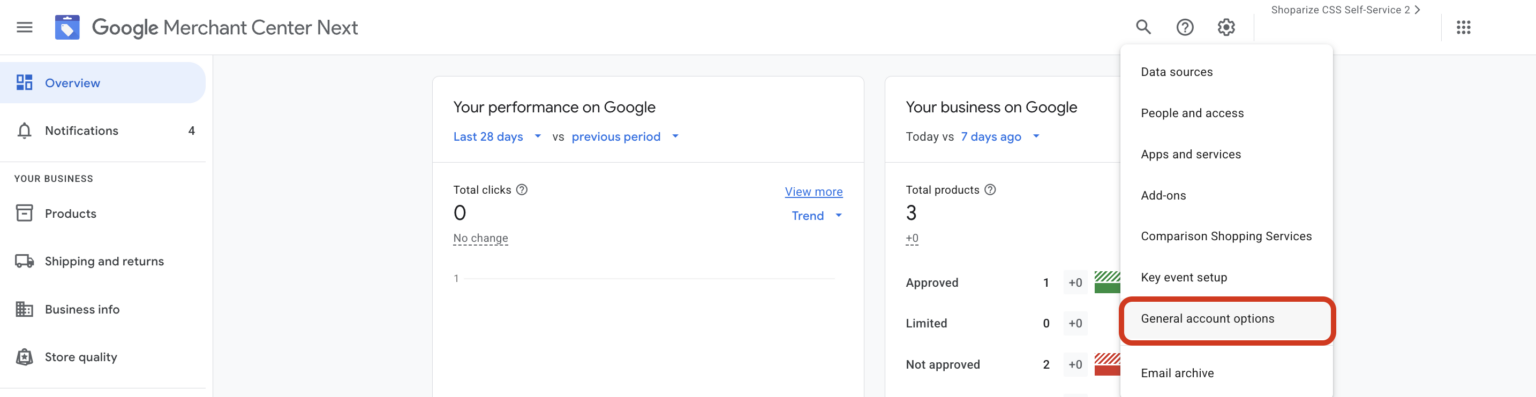
Once you’ve logged into your Merchant Center account, navigate to the “General Account Options” page in your settings
Scroll down to “Comparison Shopping Services” to review the pending request from Shoparize CSS
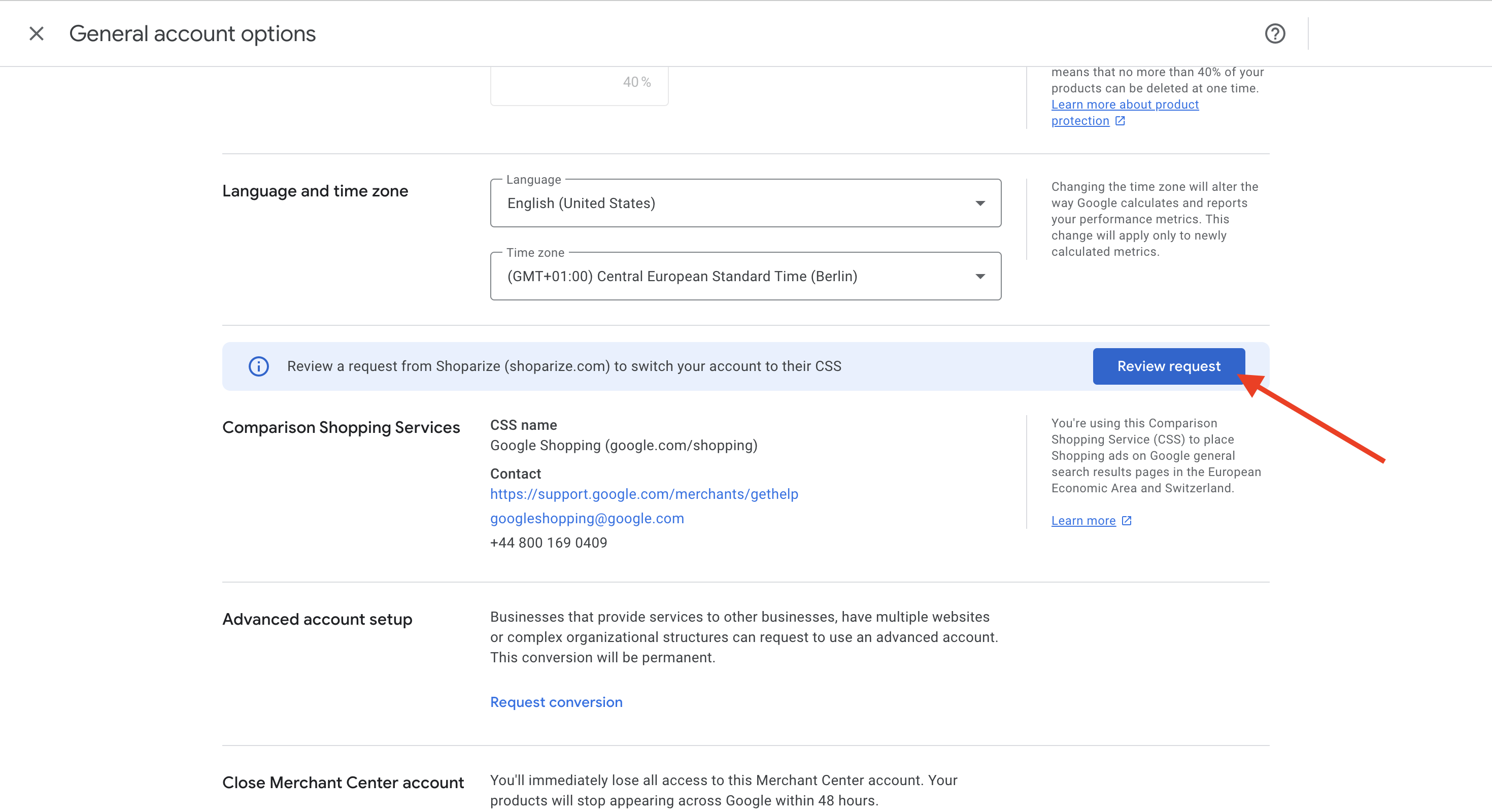
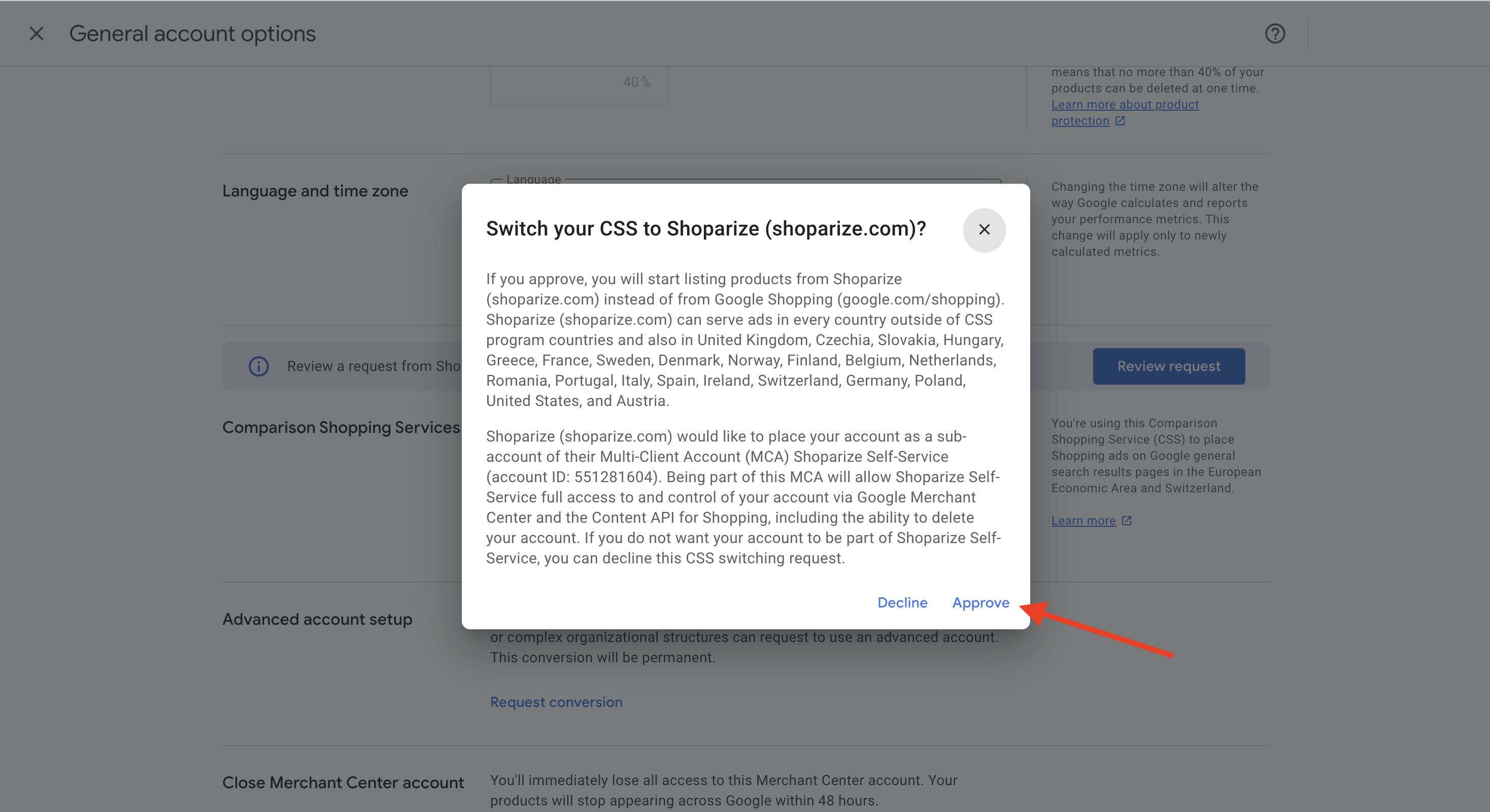
Approve the switch
Hit “Approve”
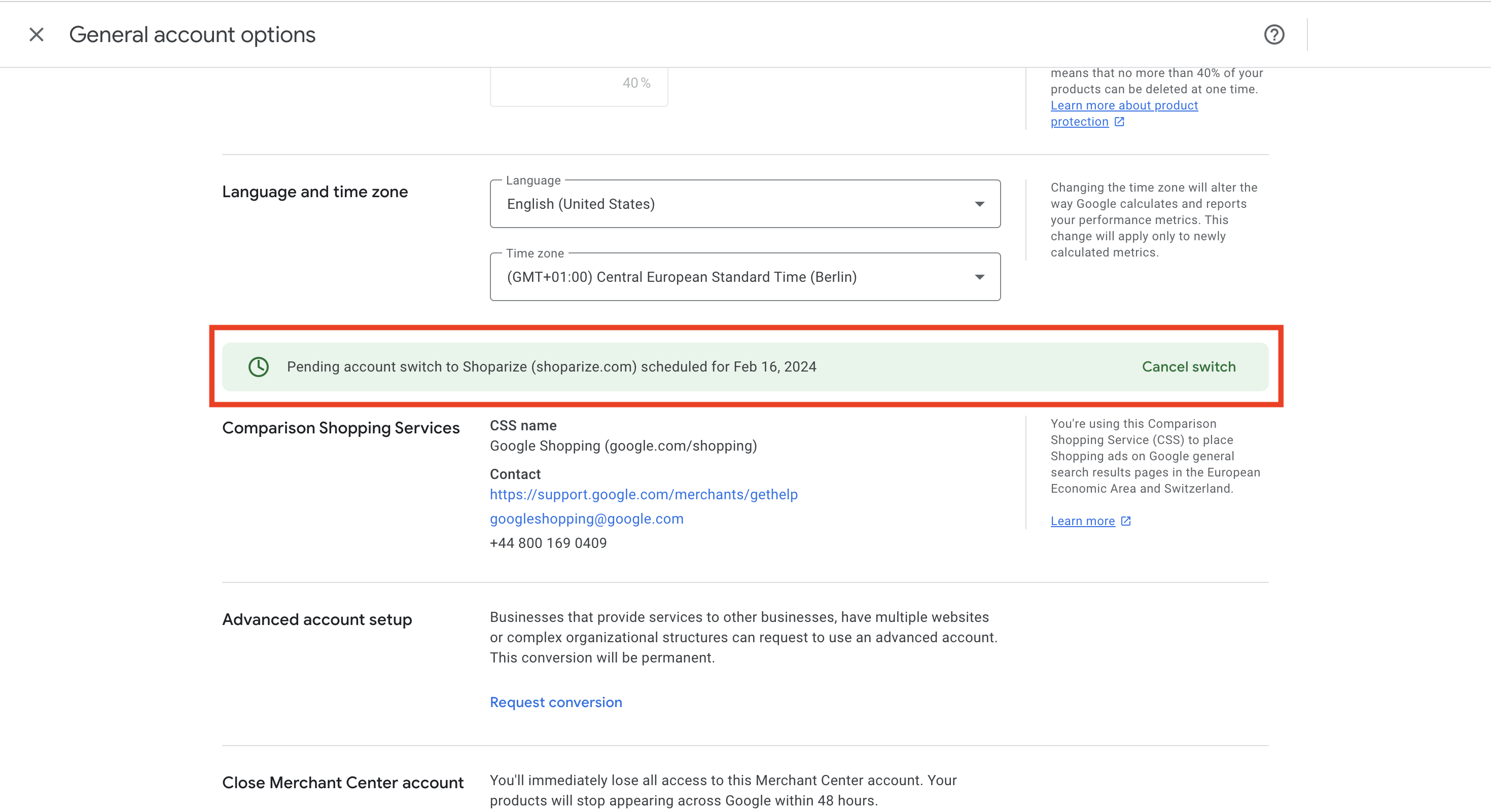
Confirm the switch
After approving the switch, you will see an updated banner confirming the pending request. This switch will be fully completed within 24 hours
Your Google Merchant Center has now successfully been switched to Shoparize CSS. For further assistance, feel free to reach out to our support team via chat or by email.