Doel
Je maakt een productfeedpagina in Google Shopping-indeling om deze te gebruiken met Shoparize | partner door deze tutorial te volgen.
Inhoud
- Paginasjabloon voor productfeed maken
- Pagina voor productfeed toevoegen
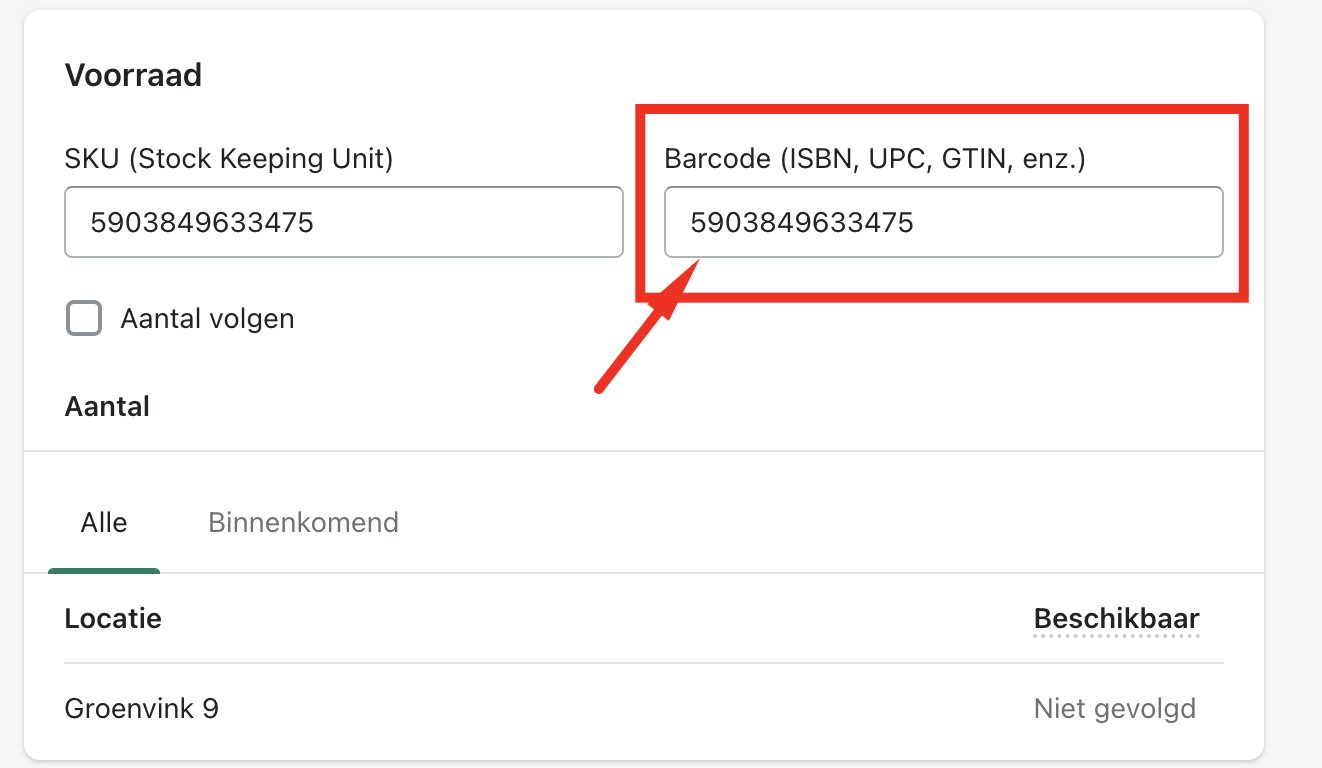
- Hoe kan ik EAN/GTIN-nummers toevoegen aan mijn productfeed?
Instructies
Paginasjabloon voor productfeed maken
Log in op je Shopify-account en ga naar je winkel.
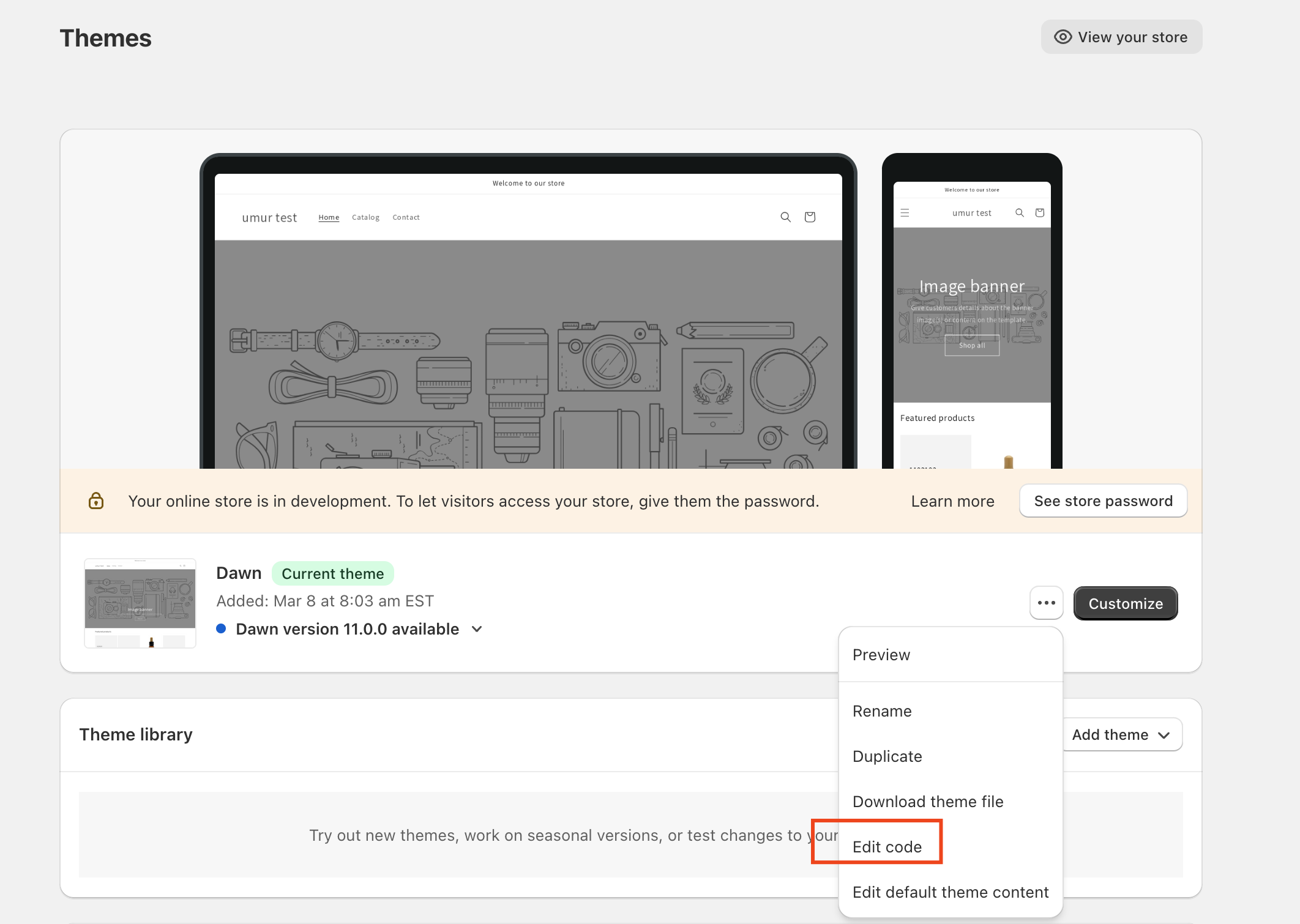
Verkoopkanalen > Onlinewinkel > Thema's
Klik op de Acties knop in je live Theme en selecteer Code bewerken
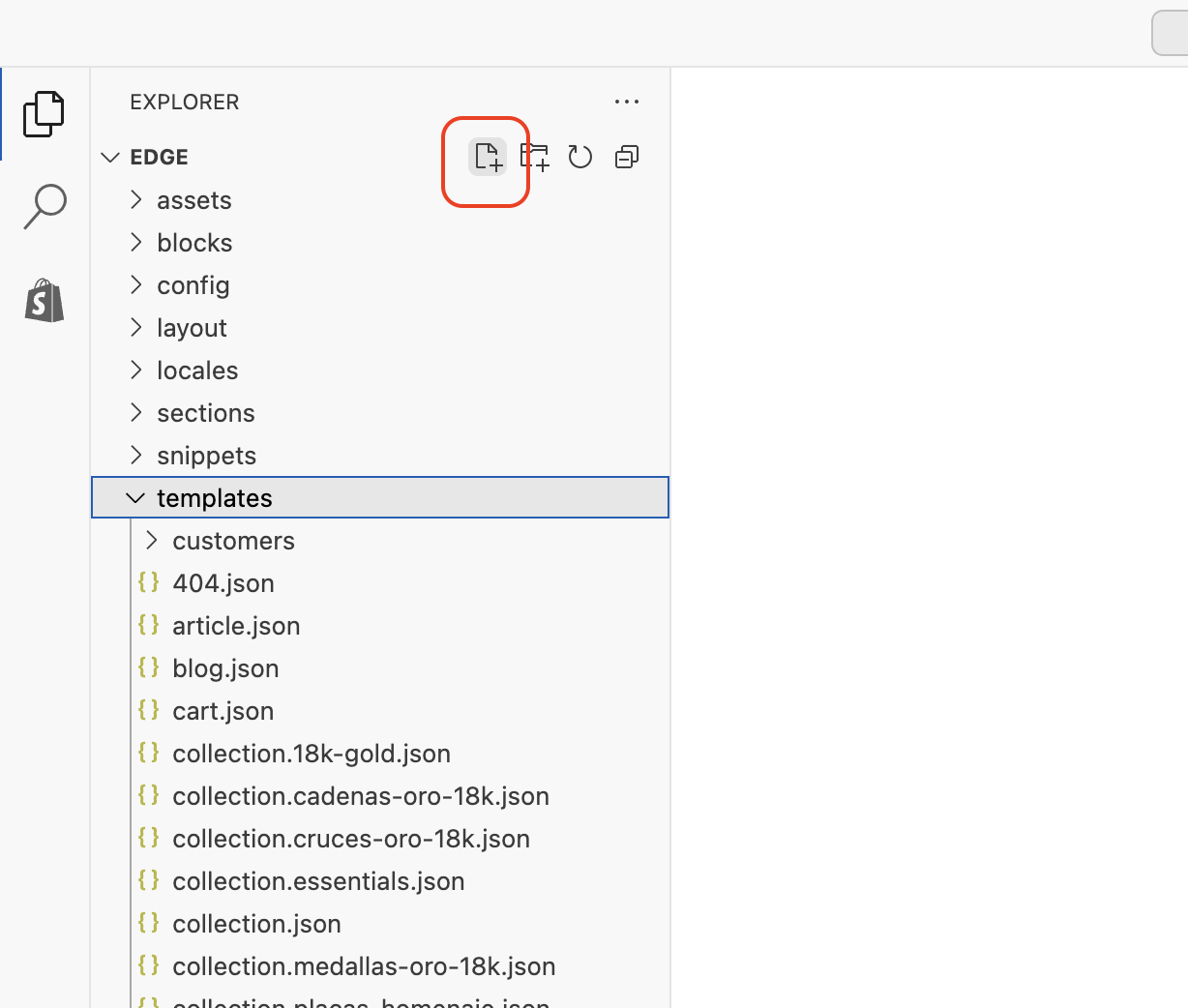
Klik om Een nieuw bestand toe te voegen onder het gedeelte Templates
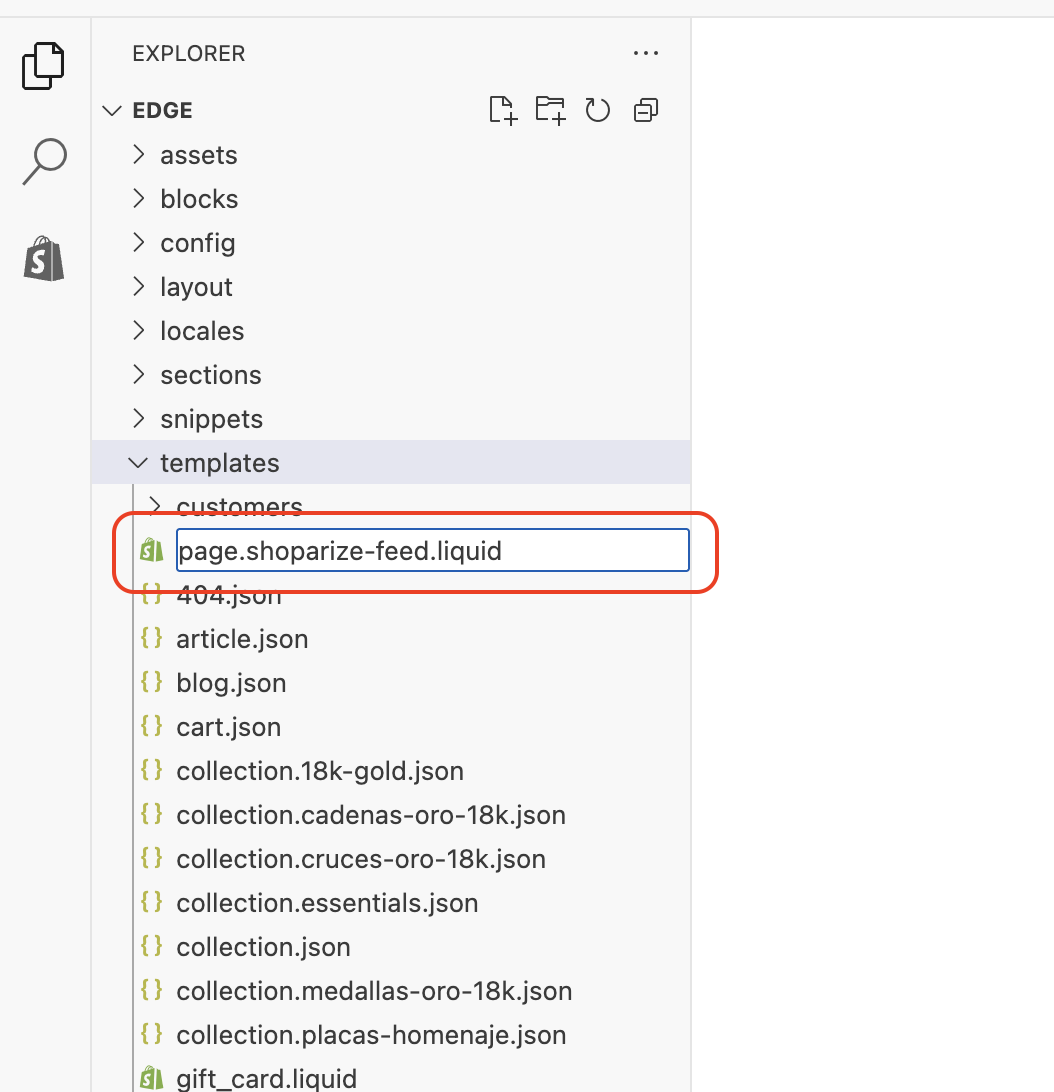
Typ bestandsnaam in om page.shoparize-feed.liquid
Nadat je op de knop Sjabloon maken hebt geklikt, leidt Shopify je door naar het bewerken van dit nieuwe paginasjabloon.
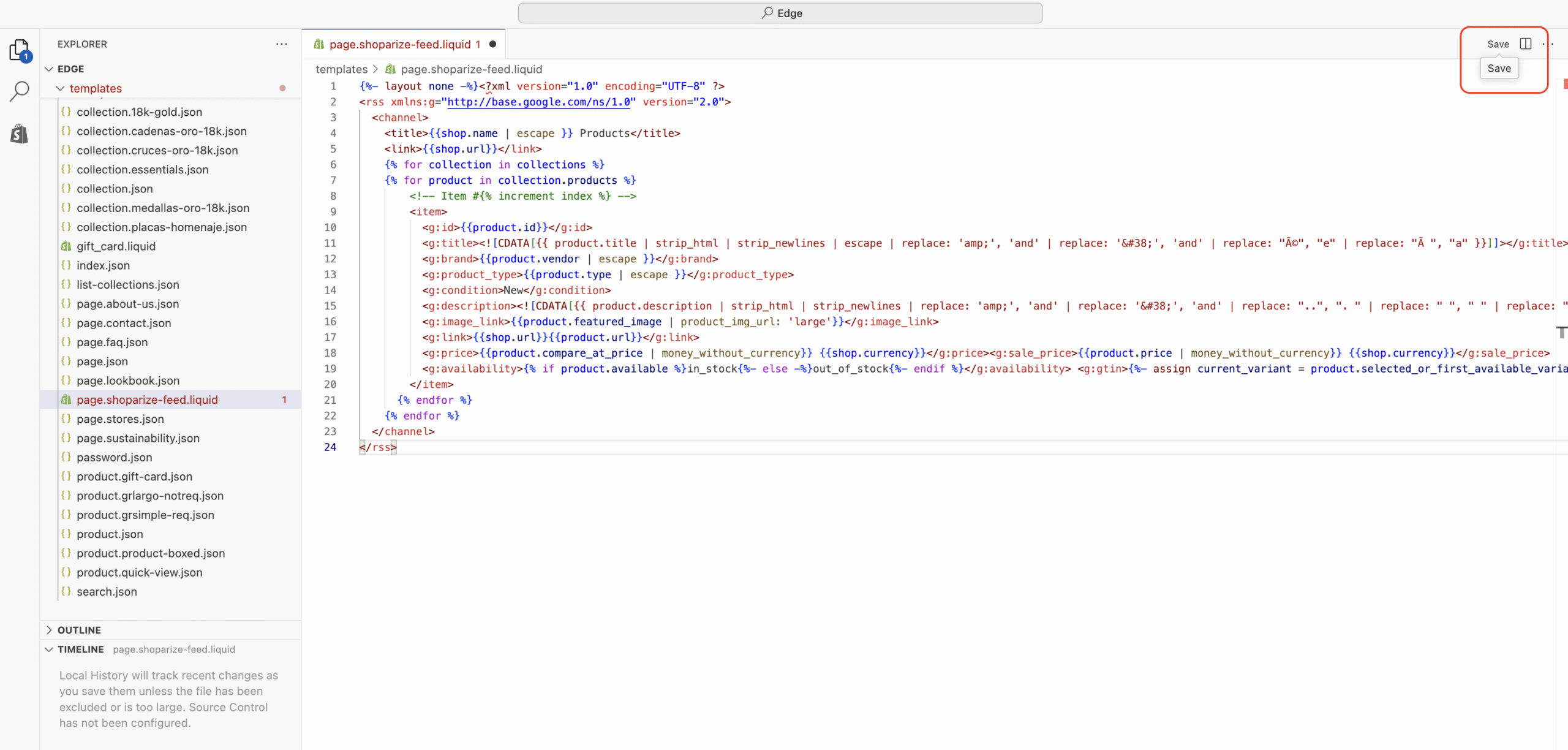
Verwijder alle inhoud in het tekstvak en kopieer en plak vervolgens onderstaande productsjabloon voor de feed.
{%- layout none -%}
<
?xml version
=
"1.0"
encoding
=
"UTF-8"
?
>
<rss xmlns:g="http://base.google.com/ns/1.0" version="2.0">
<channel>
<title>
{{shop.name | escape }}
Products
</title>
<link>
{{shop.url}}
</link>
{% for collection in collections %}
{% for product in collection.products %}
<!-- Item #{% increment index %} -->
<item>
<g:id>
{{product.id}}
</g:id>
<g:title>
<![CDATA[{{ product.title | strip_html | strip_newlines | escape | replace: 'amp;', 'and' | replace: '&', 'and' | replace: "é", "e" | replace: "à ", "a" }}]]>
</g:title>
<g:brand>
{{product.vendor | escape }}
</g:brand>
<g:product_type>
{{product.type | escape }}
</g:product_type>
<g:condition>
New
</g:condition>
<g:description>
<![CDATA[{{ product.description | strip_html | strip_newlines | replace: 'amp;', 'and' | replace: '&', 'and' | replace: "..", ". " | replace: " ", " " | replace: "‘", "'" | replace: "’", "'" | replace: "‘", "'" | replace: "’", "'" | replace: "’", "'" | replace: "’", "'" | replace: "“", "'" | replace: "‘", "'" | replace: "´", "'" | replace: "“", """ | replace: "â€", """ | replace: "–", "-" | replace: "–", "-" | replace: "â€â€", "-" | replace: "–", "—" | replace: "—", "—" | replace: "%", "%" | replace: "©", "©" | replace: "®", "®" | replace: "â„¢", "™" | replace: "£", "£" | replace: "ï¿Â", "*" | replace: "•", "*" | replace: "â€Â", "'" | replace: "é", "e" | replace: "é", "e" | replace: "à ", "a" | replace: "ó", "o" | replace: "ê", "e" | replace: "Ø", "O" | replace: "™", "" | replace: "®", "" }}]]>
</g:description>
<g:image_link>
{{product.featured_image | product_img_url: 'large'}}
</g:image_link>
<g:link>
{{shop.url}}
{{product.url}}
</g:link>
<g:price>
{{product.compare_at_price | money_without_currency}}
{{shop.currency}}
</g:price>
<g:sale_price>
{{product.price | money_without_currency}}
{{shop.currency}}
</g:sale_price>
<g:availability>
{% if product.available %}
in_stock
{%- else -%}
out_of_stock
{%- endif %}
</g:availability>
<g:gtin>
{%- assign current_variant = product.selected_or_first_available_variant -%}
{% if current_variant.barcode %}
{{current_variant.barcode}}
{%- else -%}
{%- endif %}
</g:gtin>
</item>
{% endfor %}
{% endfor %}
</channel>
</rss>
Opslaan de template
Pagina voor productfeed toevoegen
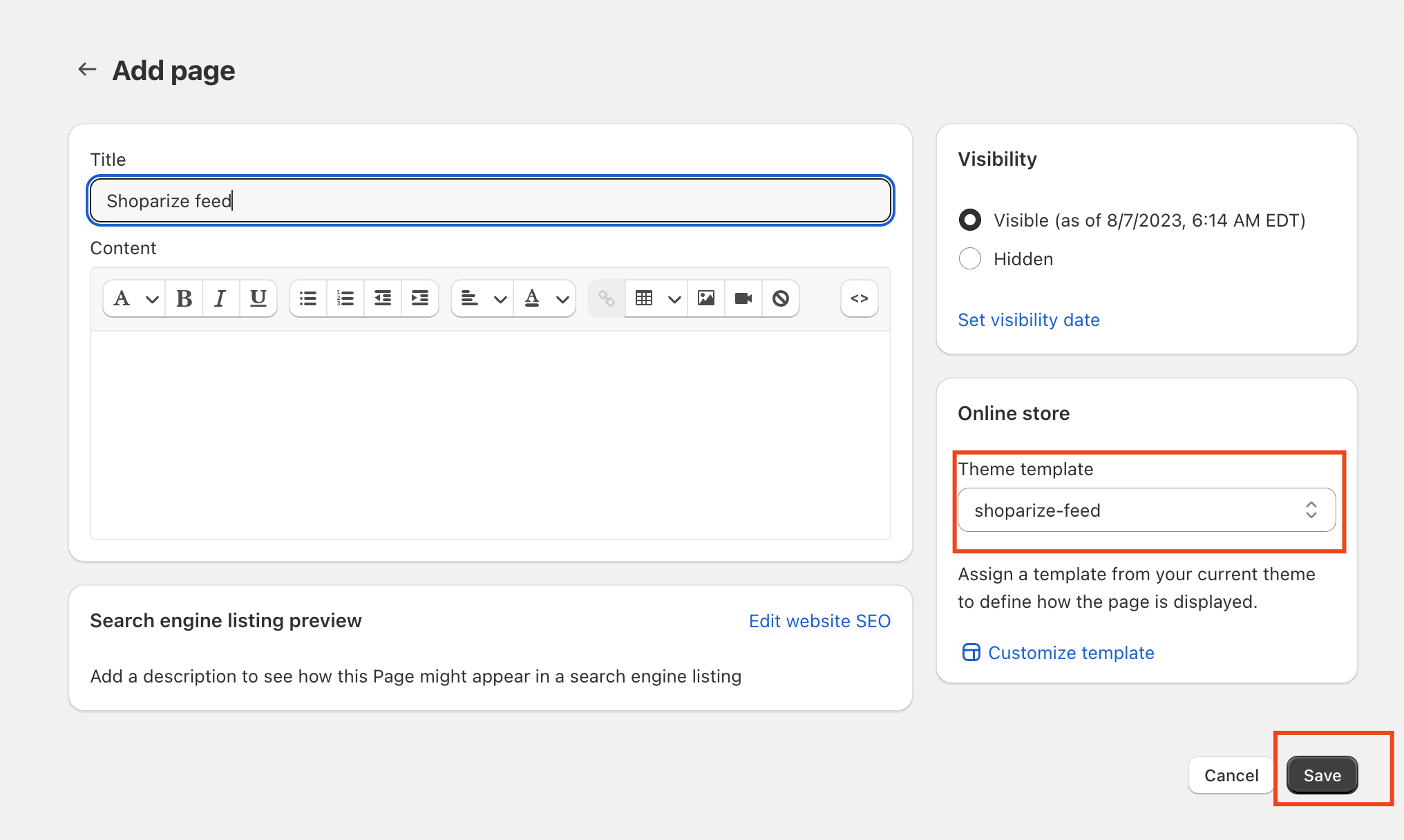
Ga naar Sales Channels > Online Store > Pages en voeg een nieuwe pagina toe.

Zet Shoparize Product Feed in de titel
Selecteer shoparize-feed als themasjabloon
Pagina opslaan.
Je productfeed is klaar.
Klik op Voorbeeldpagina om je nieuwe productfeedpagina te bekijken. Of ga naar https://yourshoppage.com/pages/shoparize-product-feed
Hoe kan ik EAN/GTIN-nummers aan mijn feed toevoegen?
Je moet barcodenummers toevoegen in de sectie Voorraad – Barcode op de productdetailpagina.